Latest Updates
How to Set Password Strength for WHM/cPanel Users
Introduction How to Set Password Strength for WHM/cPanel Users is an important security configuration that helps protect hosting accounts, email accounts, FTP accounts, and other server services from unauthorized access. Weak passwords are one…
Introduction
How to Set Password Strength for WHM/cPanel Users is an important security configuration that helps protect hosting accounts, email accounts, FTP accounts, and other server services from unauthorized access. Weak passwords are one of the most common causes of security breaches, making password policies a critical part of server administration.
WHM allows server administrators to enforce password strength requirements across the entire hosting environment. By setting minimum password strength levels, administrators can ensure that users create secure passwords that reduce the risk of brute-force attacks, account compromises, and unauthorized access attempts.
In this guide, you’ll learn how to configure password strength requirements for WHM and cPanel users.
Why Password Strength Matters
Passwords are the first line of defense against unauthorized access.
Weak passwords can lead to:
- Account Hijacking
- Data Breaches
- Website Defacement
- Email Abuse
- Malware Infections
- Unauthorized Server Access
Implementing strong password requirements helps improve overall server security and protects customer accounts.
What Is Password Strength Configuration in WHM?
WHM includes a built-in feature called Password Strength Configuration that allows server administrators to define the minimum password strength required for various hosting components.
This feature applies to:
- cPanel Accounts
- Email Accounts
- FTP Accounts
- Database Users
- Mailing Lists
- Web Disk Accounts
- Other Hosting Services
Administrators can configure a global password strength policy or customize strength requirements for individual services.
Prerequisites
Before you begin:
✔ Root Access to WHM
✔ Administrative Privileges
✔ Access to Security Center
Step 1: Log in to WHM
Access your WHM panel using root credentials.
Example: https://your-server-hostname:2087
Enter your username and password to log in.
After successful authentication, you’ll be redirected to the WHM dashboard.
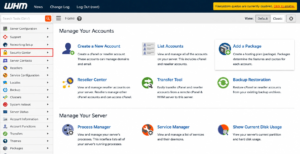
Step 2: Navigate to Security Center
From the WHM dashboard:
Home → Security Center
The Security Center contains several server security settings and password management tools.
Click on Security Center to continue.
Step 3: Open Password Strength Configuration
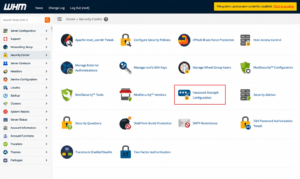
Inside Security Center, locate:
Password Strength Configuration
Click the option to open the password policy settings page.
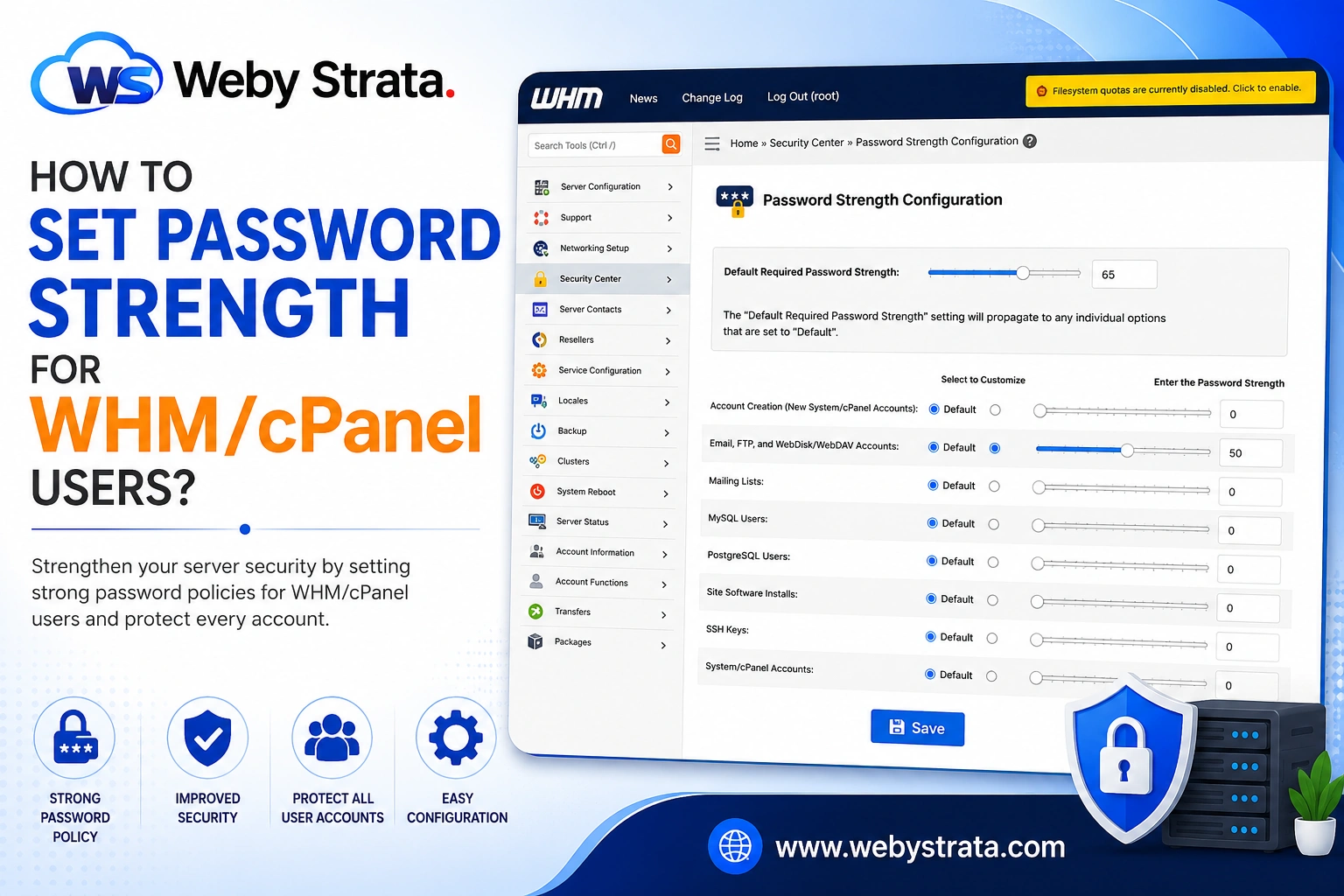
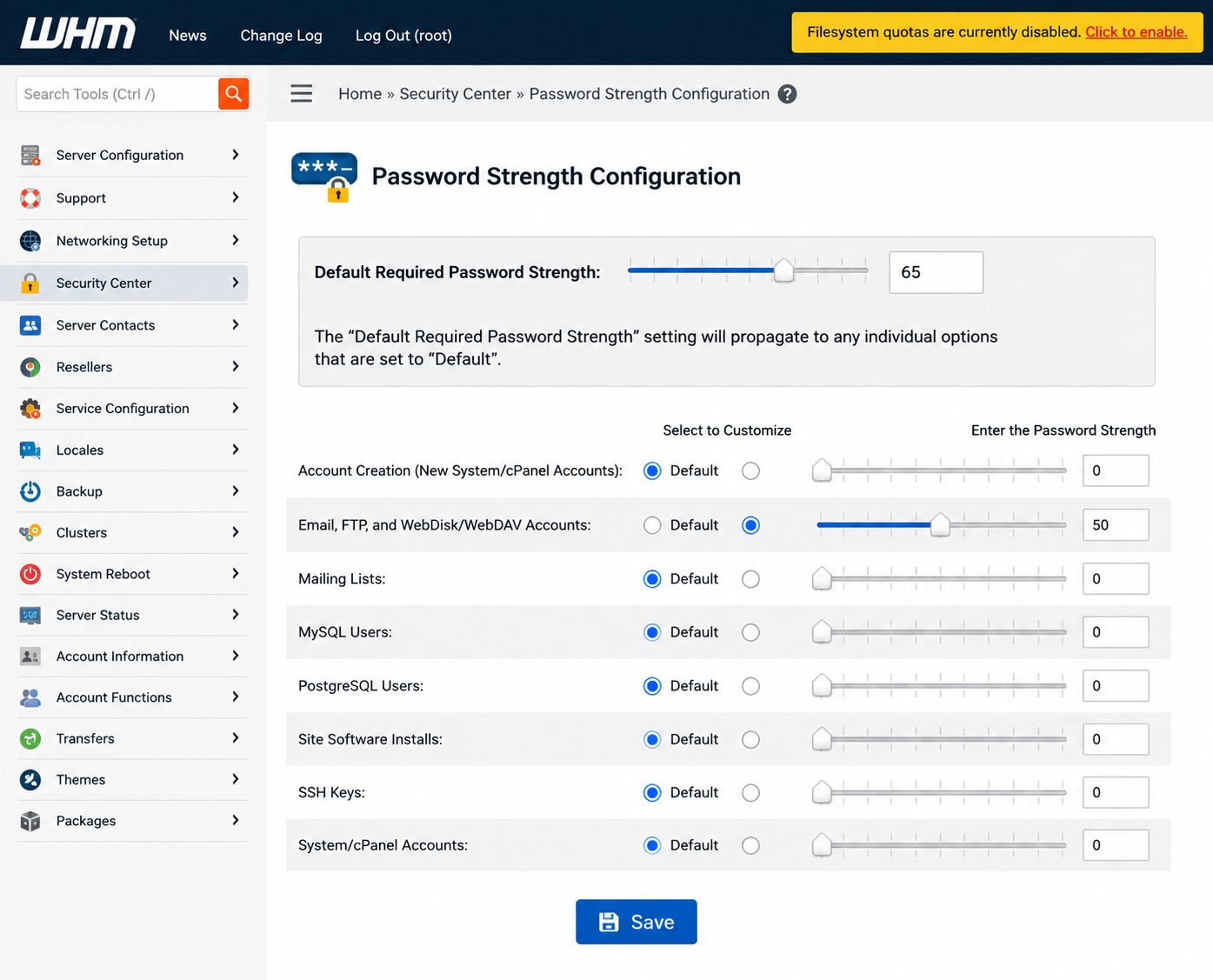
The Password Strength Configuration interface will appear.
This section allows you to define minimum password requirements for your server users.
Step 4: Set the Default Required Password Strength
Locate the field:
Default Required Password Strength
Enter the desired password strength value.
WHM uses a scoring system to evaluate password complexity based on:
- Length
- Uppercase Letters
- Lowercase Letters
- Numbers
- Special Characters
The higher the value, the stronger the password requirement becomes.
This default setting applies to:
- Hosting Accounts
- Email Accounts
- FTP Accounts
- Mailing Lists
- Other Hosting Components
unless custom values are configured.
Step 5: Customize Password Strength for Specific Services
WHM also allows administrators to configure different password strength requirements for individual hosting services.
To customize:
- Locate the service list.
- Select the radio button next to the desired service.
- Enable custom configuration.
Once enabled, the service can use its own password strength requirement instead of the default value.
This flexibility allows administrators to apply stricter security rules where necessary.
Step 6: Configure Password Strength Value
After selecting a hosting component:
Enter or Adjust the Password Strength Value
You can:
- Use the slider control
- Enter the value manually
Set a value appropriate for your organization’s security requirements.
Higher values generally require more complex passwords.
Step 7: Save the Configuration
After completing all changes:
Click: Save
WHM will apply the new password strength settings across the server.
The updated password policies will be enforced whenever users create or modify passwords.
Benefits of Enforcing Strong Passwords
Configuring password strength requirements provides several security advantages.
Improved Account Security
Strong passwords reduce the likelihood of unauthorized access.
Better Protection Against Brute Force Attacks
Complex passwords are more difficult for attackers to guess.
Reduced Risk of Data Breaches
Stronger authentication improves overall server security.
Enhanced Customer Protection
Hosting customers benefit from improved account security.
Compliance with Security Best Practices
Strong password policies align with industry security recommendations.
Recommended Password Strength Practices
For maximum security:
Use Long Passwords
Encourage passwords with at least 12–16 characters.
Include Multiple Character Types
Use:
- Uppercase Letters
- Lowercase Letters
- Numbers
- Special Characters
Avoid Common Words
Dictionary words are easier to crack.
Avoid Personal Information
Names, birthdays, and phone numbers should never be used as passwords.
Encourage Unique Passwords
Users should avoid reusing passwords across multiple accounts.
Common Use Cases
Server administrators commonly configure password strength policies when:
- Setting up new hosting servers
- Improving server security
- Managing reseller hosting environments
- Following compliance requirements
- Protecting customer accounts
Conclusion
The Password Strength Configuration feature in WHM allows administrators to enforce secure password policies across hosting accounts, email accounts, FTP users, mailing lists, and other services.
By setting appropriate password strength requirements, you can significantly improve server security, reduce the risk of account compromise, and create a safer hosting environment for all users.
Regularly reviewing and updating your password policies is an important part of maintaining a secure and reliable hosting infrastructure.
Originally published on WebyStrata.com Blog.
Related Articles