cPanel
How to Create a URL Redirect from cPanel
How to Create a URL Redirect from cPanel Managing website URLs effectively is an important part of website administration. Whether you have moved a page, changed your domain name, or want visitors to automatically…
How to Create a URL Redirect from cPanel
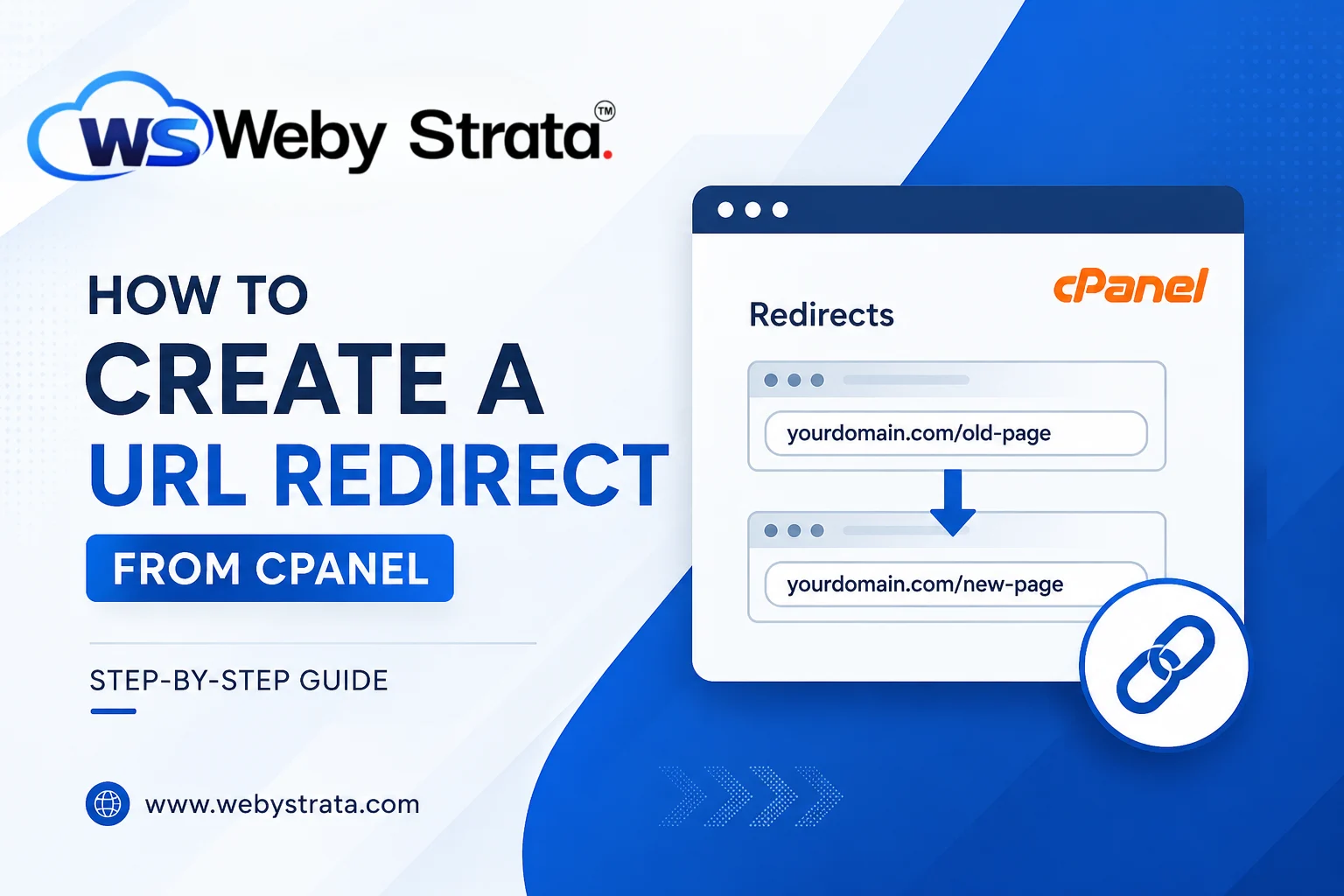
Managing website URLs effectively is an important part of website administration. Whether you have moved a page, changed your domain name, or want visitors to automatically reach a new location, URL redirects can help maintain a seamless user experience.
cPanel provides an easy-to-use Redirects feature that allows website owners to create URL redirects without editing configuration files manually. In this guide, you’ll learn how to create a URL Redirect from cPanel and understand the different types of redirects available.
What Is a URL Redirect?
A URL redirect automatically sends visitors from one URL to another. When someone visits the original URL, they are immediately forwarded to the destination URL.
Redirects are commonly used for:
- Moving pages to a new location
- Redirecting old URLs after a website redesign
- Redirecting non-www URLs to www URLs
- Redirecting HTTP traffic to HTTPS
- Migrating to a new domain
- Fixing broken or outdated links
Types of Redirects in cPanel
Before creating a redirect, it’s important to understand the available redirect types.
301 Permanent Redirect
A 301 redirect tells search engines and visitors that the page has permanently moved to a new location.
Benefits:
- Preserves SEO value
- Transfers most search engine rankings
- Recommended for permanent URL changes
302 Temporary Redirect
A 302 redirect indicates that the redirect is temporary.
Benefits:
- Useful for maintenance pages
- Ideal for testing new pages
- Search engines continue indexing the original URL
How to Create a URL Redirect from cPanel
Follow these steps to create a URL redirect using cPanel.
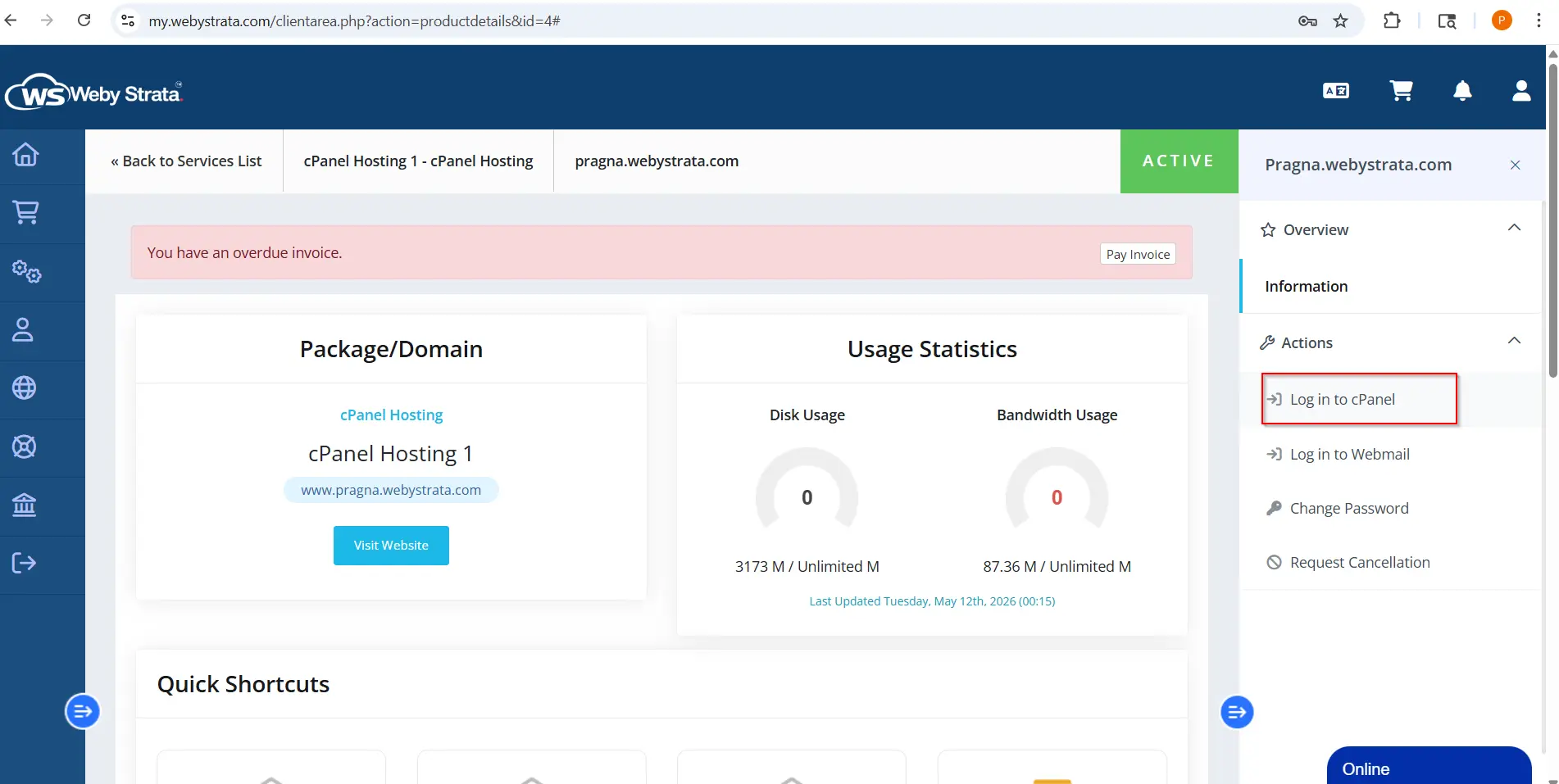
Step 1: Login to cPanel from Client Area
First, visit the WebyStrata website and log in to your client area account using your registered email address and password.
official Website www.webystrata.com
After logging in:
- Go to Services
- Click on My Services
- Select your active hosting service
- Click on Login to cPanel
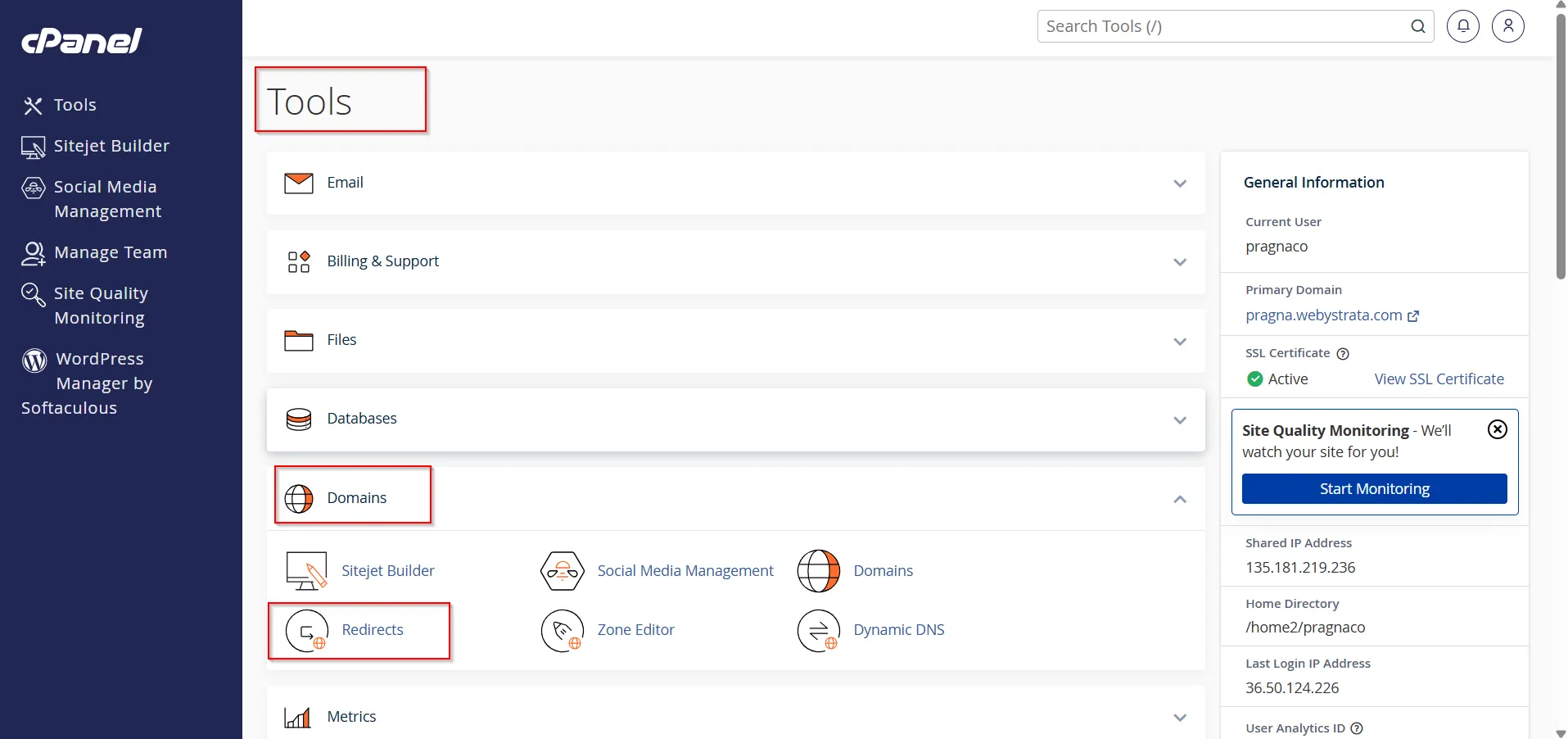
Step 2: Open the Redirects Tool
Under the Domains section, click Redirects.
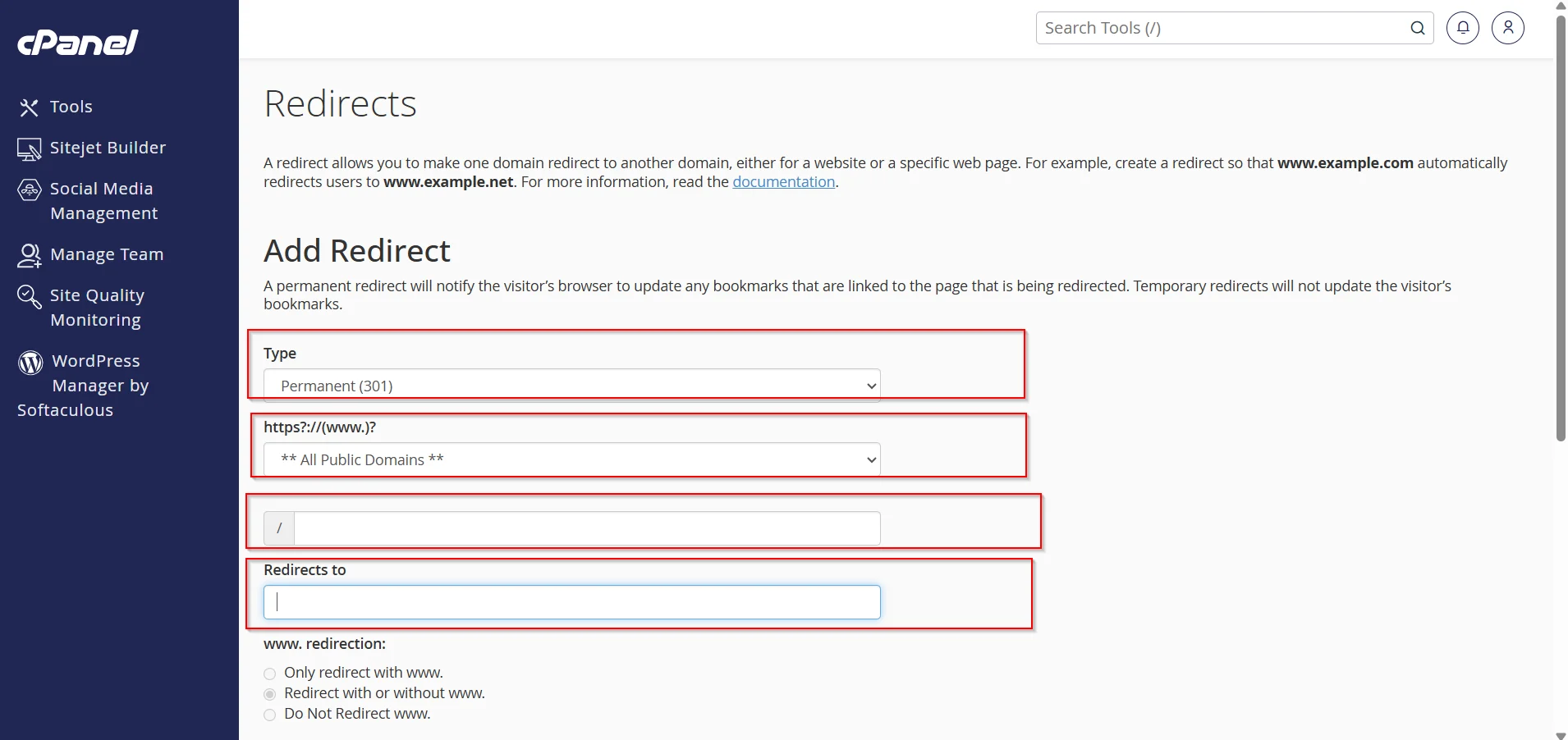
Step 3: Select Redirect Type
- From the Type dropdown menu, choose:
- Permanent (301)
- Temporary (302)
Select the option that best fits your requirement.
2. Use the domain dropdown menu to select the domain you want to redirect.
3. In the URL field, enter the specific directory or page you want to redirect.
Examples:
/old-page/blog/article1/services
Leave the field blank if you want to redirect the entire domain.
4. In the Redirects to field, enter the full destination URL.
Example:
https://www.yourdomain.com/new-page
Make sure to include:
- http://
- https://
depending on the destination URL.
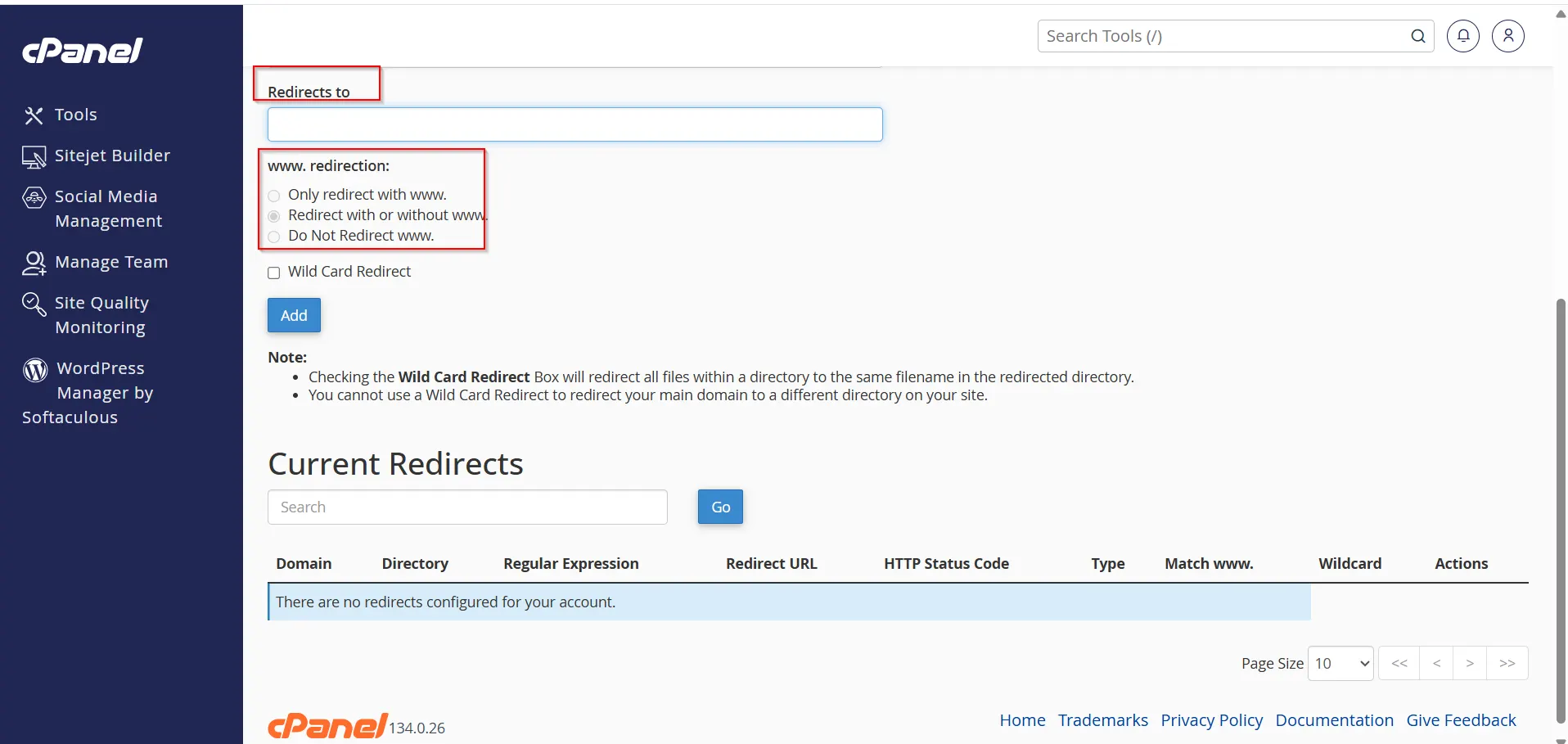
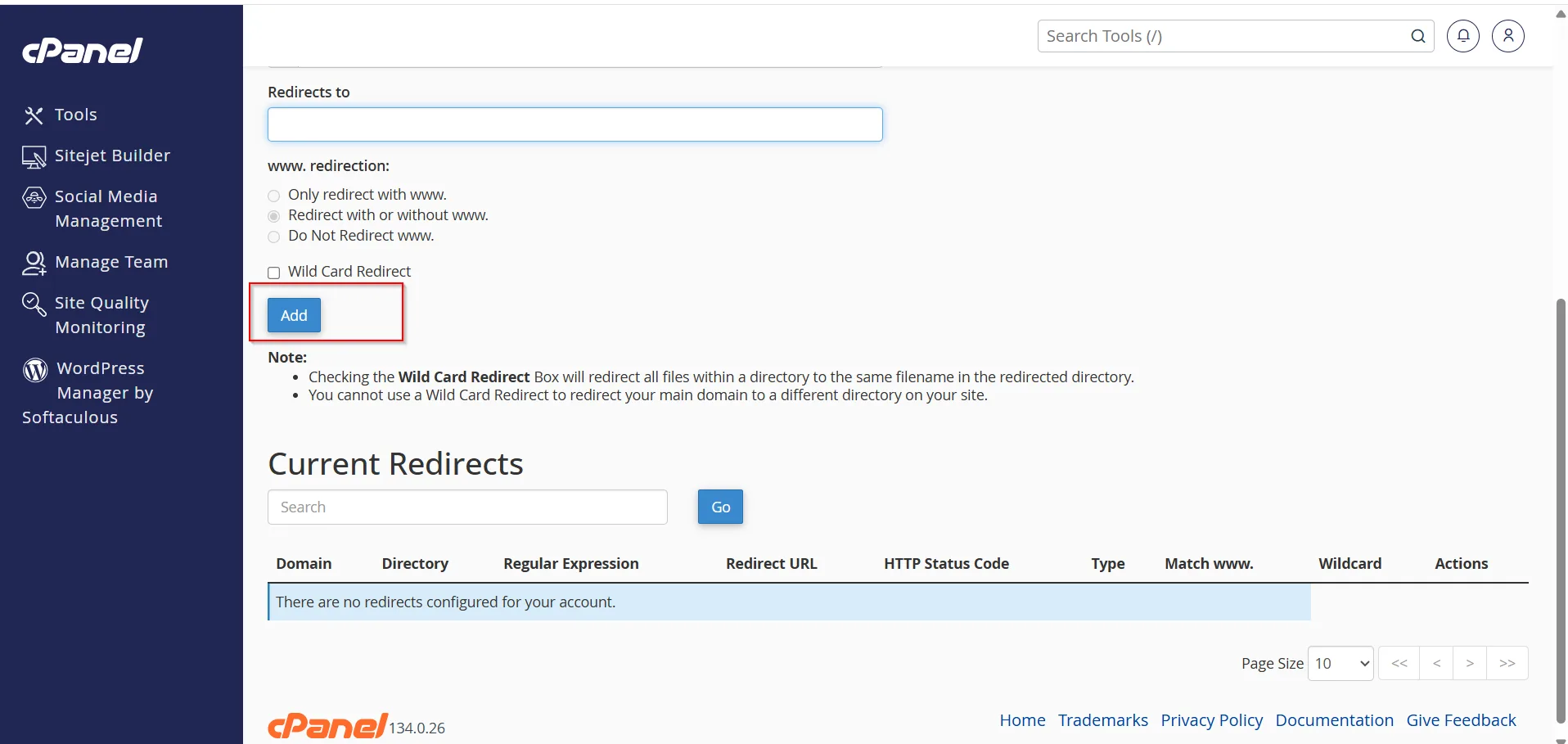
Step 4: Configure Redirect Options
You may see options such as:
Only Redirect with www
Redirect only requests that contain “www”.
Redirect with or without www
Redirect all requests regardless of whether they use www.
Do Not Redirect www
Redirect only non-www requests.
Choose the option that matches your website setup.
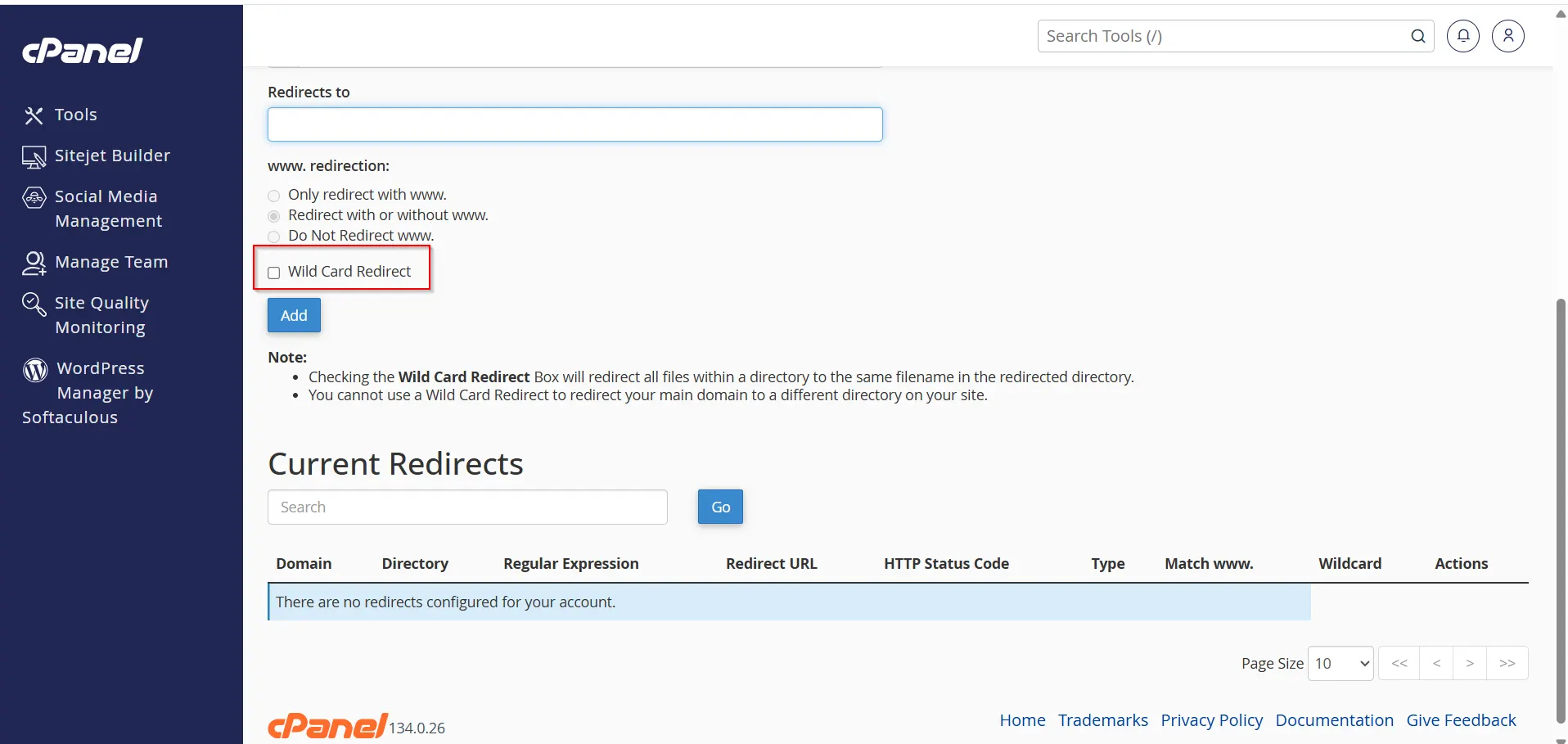
Step 5: Enable Wild Card Redirect (Optional)
If you want all files and folders within a directory to redirect to corresponding files and folders in the destination URL, enable:
Wild Card Redirect
Example:
oldsite.com/blog/post1
redirects to
newsite.com/blog/post1
This option is particularly useful during website migrations.
Step 6: Create the Redirect
Click the Add button.
cPanel will create the redirect and display a success message.
How to Verify the Redirect
After creating the redirect:
- Open a web browser.
- Enter the original URL.
- Confirm that it automatically loads the destination URL.
You can also use online redirect checker tools to verify:
- Redirect status code
- Redirect chain
- Destination URL
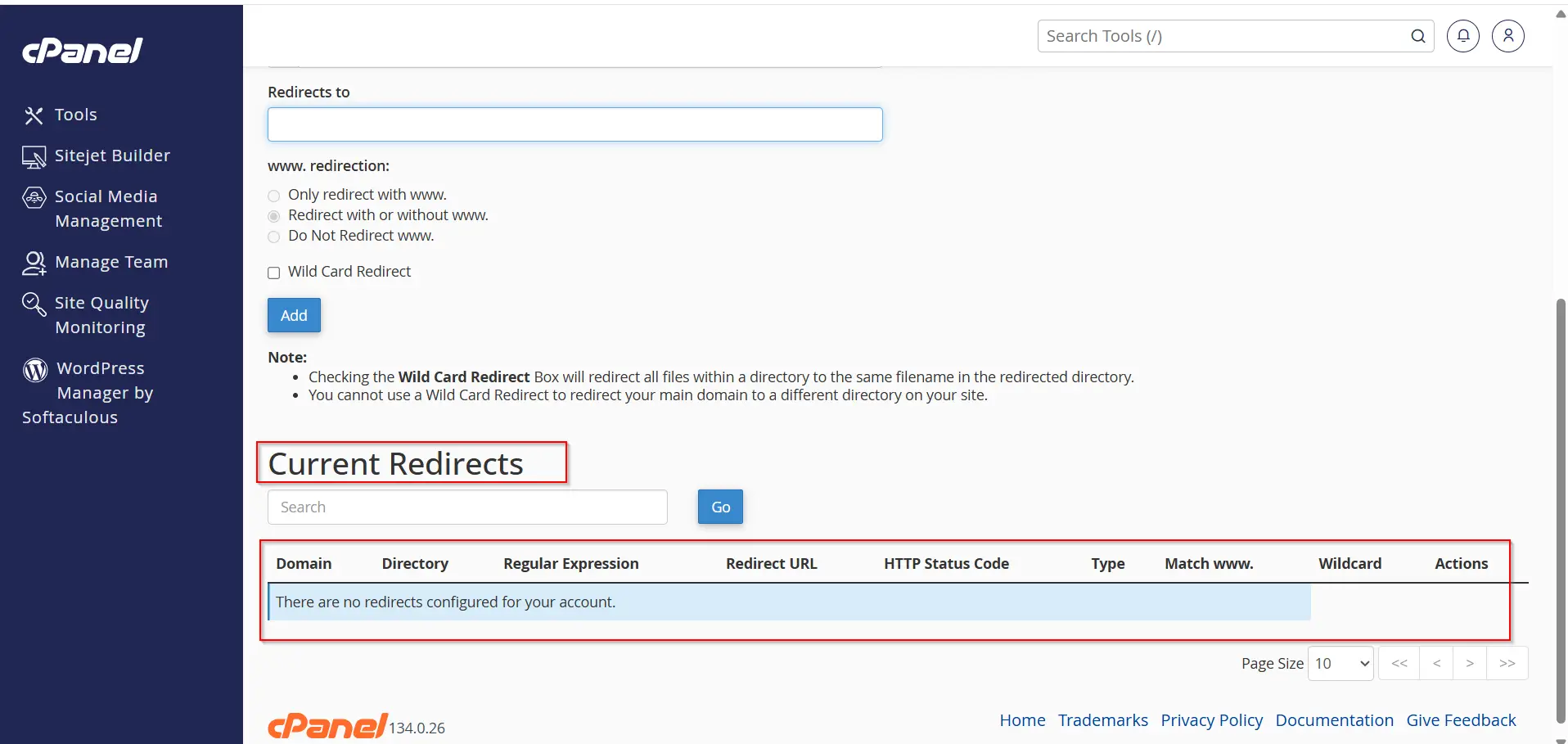
Managing Existing Redirects
To view existing redirects:
- Return to the Redirects page in cPanel.
- Scroll down to the Current Redirects section.
- Review all active redirects.
You can:
- View redirect details
- Modify redirect settings
- Remove redirects when no longer needed
Why Use URL Redirects?
Creating URL redirects helps:
- Improve user experience
- Prevent 404 errors
- Preserve search engine rankings
- Guide visitors to updated content
- Simplify website migrations
- Manage multiple domains efficiently
Benefits of Using cPanel Redirects
Using cPanel’s Redirects feature provides:
- Simple setup process
- No coding required
- Better SEO management
- Improved visitor experience
- Faster website administration
- Easy redirect management
Conclusion
Learning how to create a URL Redirect from cPanel is an essential skill for website owners and administrators. Whether you’re moving content, changing domains, or improving SEO, cPanel’s Redirects feature provides a quick and reliable way to manage URL forwarding. By choosing the correct redirect type and following best practices, you can ensure visitors and search engines always reach the right destination while maintaining a smooth browsing experience.
Originally published on WebyStrata.com Blog.
Related Articles