Latest Updates
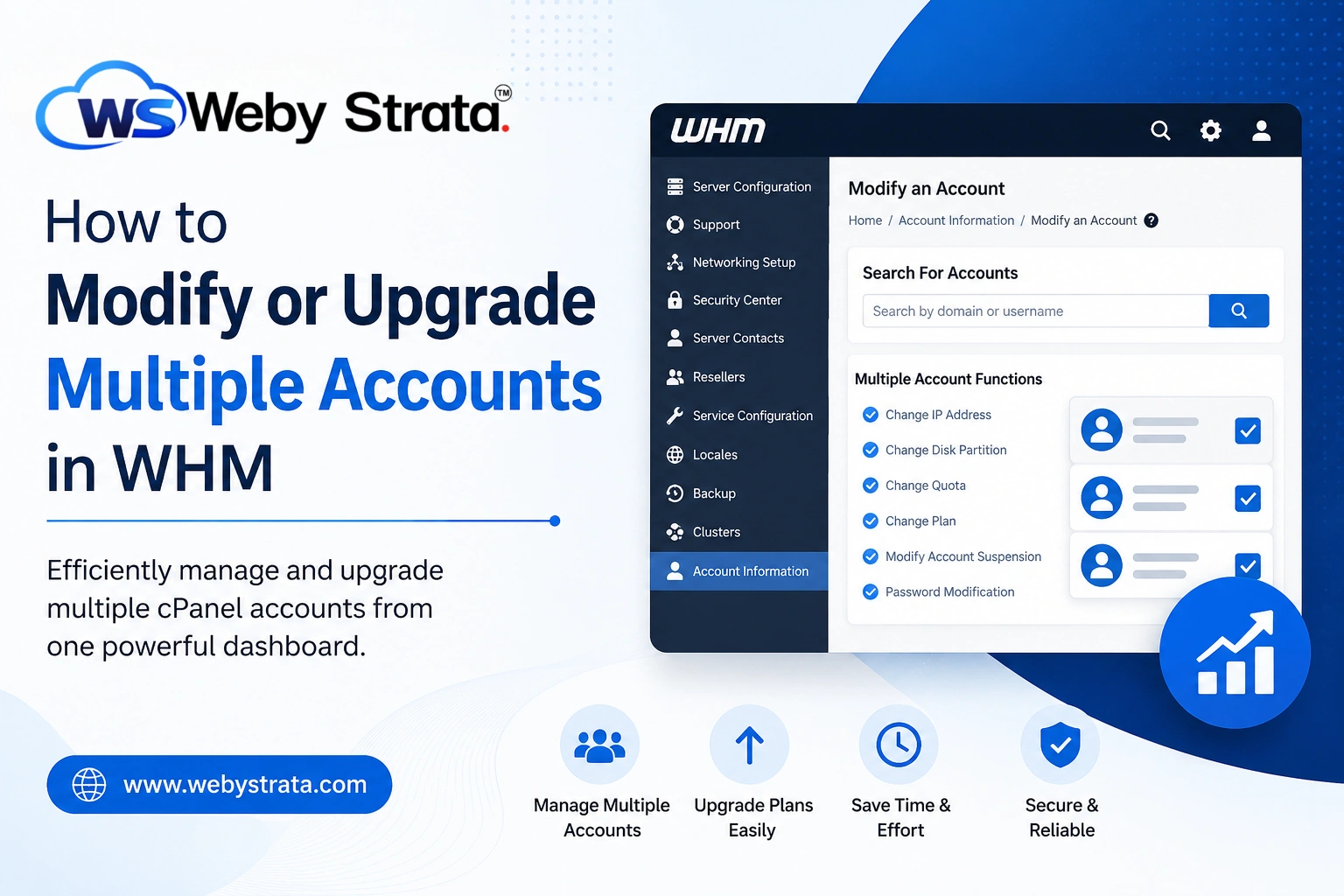
How to Modify or Upgrade Multiple Accounts in WHM
How to Modify or Upgrade Multiple Accounts in WHM Managing a hosting server with multiple clients requires efficient tools to handle large-scale operations. When you are running several hosting accounts on a server, manually…
How to Modify or Upgrade Multiple Accounts in WHM
Managing a hosting server with multiple clients requires efficient tools to handle large-scale operations. When you are running several hosting accounts on a server, manually updating each account can be time-consuming and error-prone. This is where bulk management features in WHM (Web Host Manager) become extremely useful.
One of the most powerful features available in WHM is the ability to modify or upgrade multiple hosting accounts at once. This allows administrators and resellers to quickly update hosting packages, adjust resource limits, and manage accounts in bulk without handling each account individually.
What is Modify or Upgrade Multiple Accounts in WHM?
The “Modify/Upgrade Multiple Accounts” feature in WHM is a bulk management tool that enables administrators to apply changes to multiple cPanel accounts simultaneously.
Instead of logging into each account individually, you can:
- Change hosting packages
- Upgrade or downgrade resources
- Modify bandwidth or disk space allocations
- Apply uniform settings across multiple accounts
This feature is especially useful for hosting companies managing dozens or hundreds of accounts on a single server.
Step-by-Step Guide to Modify or Upgrade Multiple Accounts in WHM
Follow the steps below to perform bulk account updates:
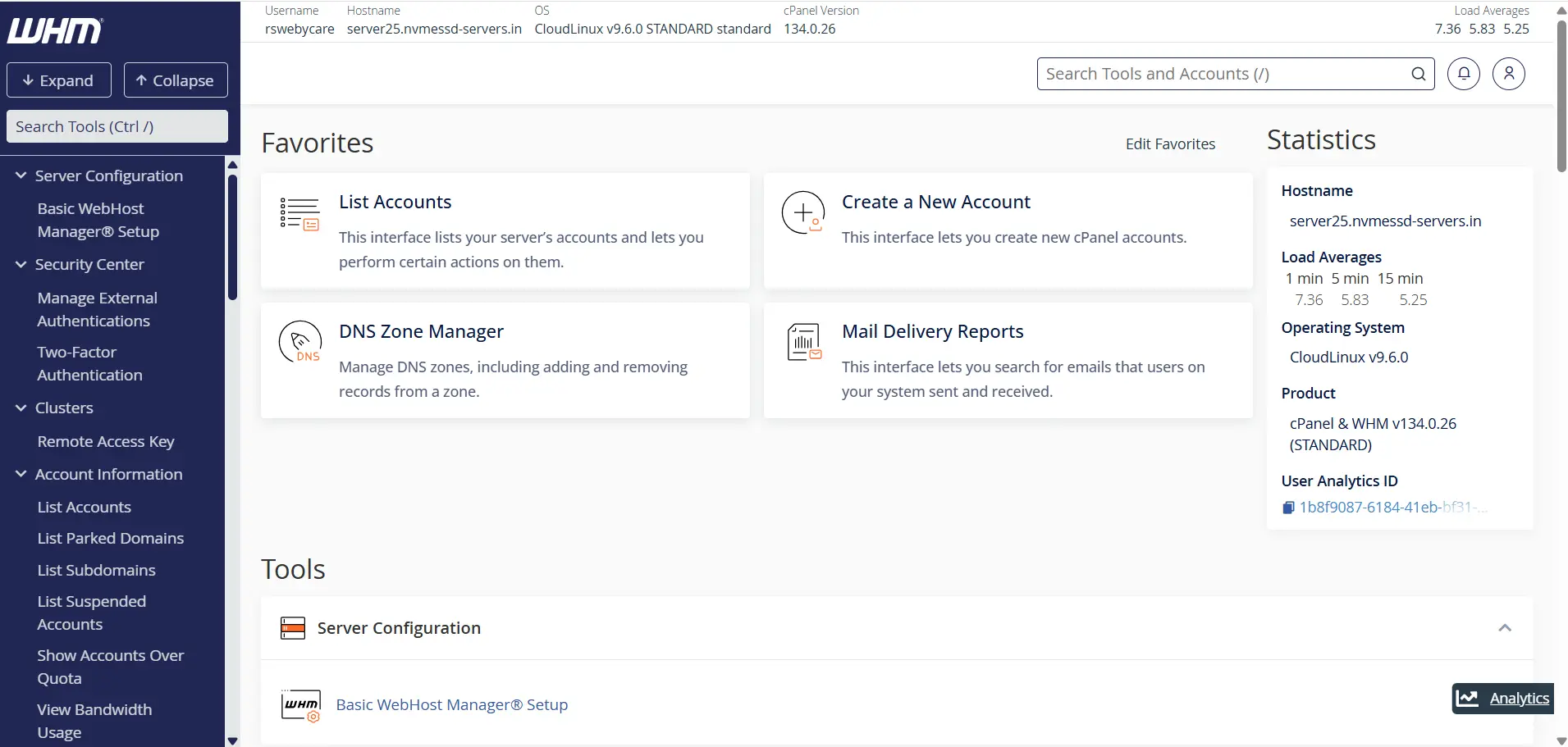
Step 1: Log in to WHM
Start by accessing your WHM dashboard.
Common WHM login URLs include:
Enter your WHM username and password to log in.
Once authenticated, you will be directed to the WHM home page where all server management tools are available.
Step 2: Locate the Bulk Modification Tool
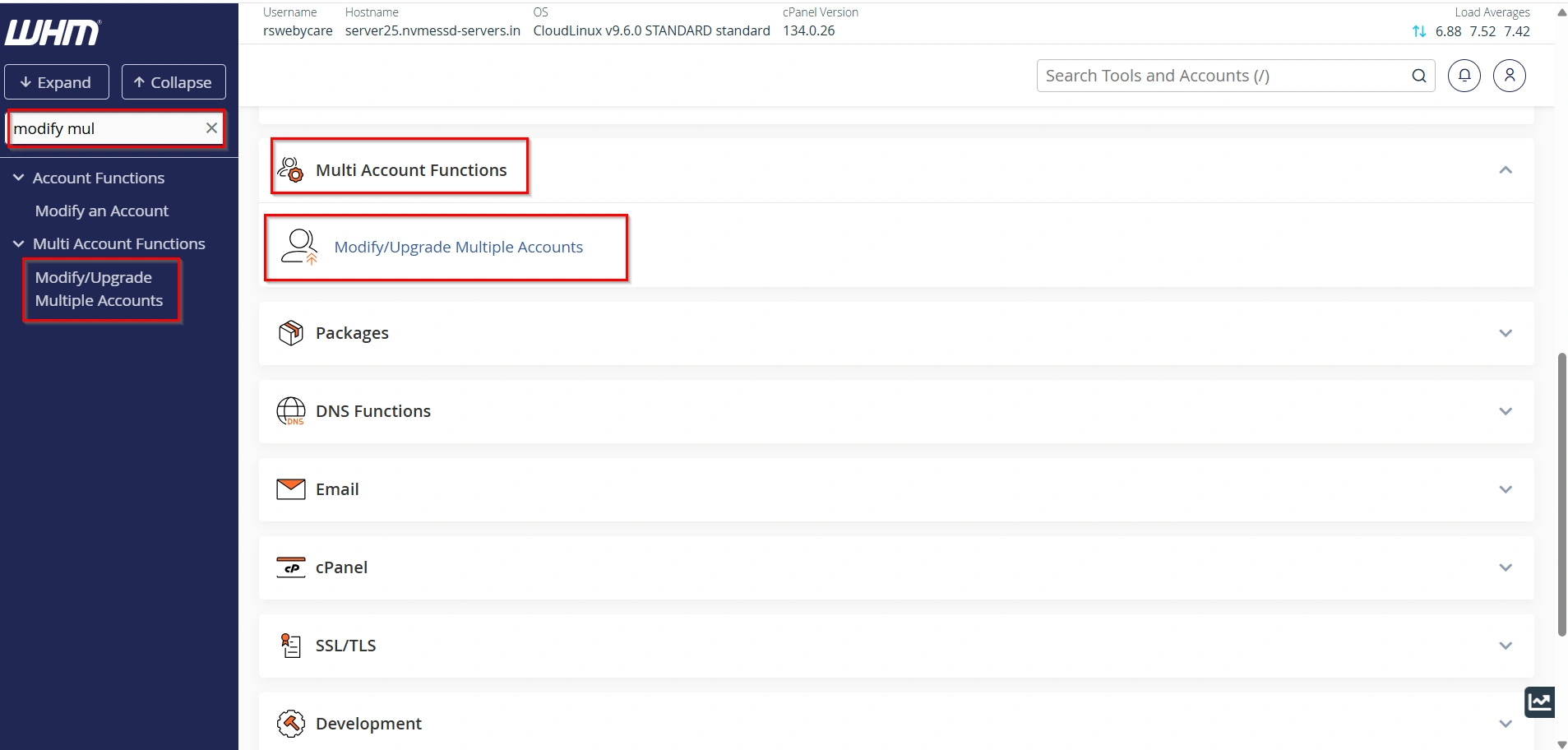
In the WHM search bar, type:
Modify/Upgrade Multiple Accounts
Click on the tool from the results.
This will open a list of all cPanel accounts available on the server.
Step 3: Select Multiple Accounts
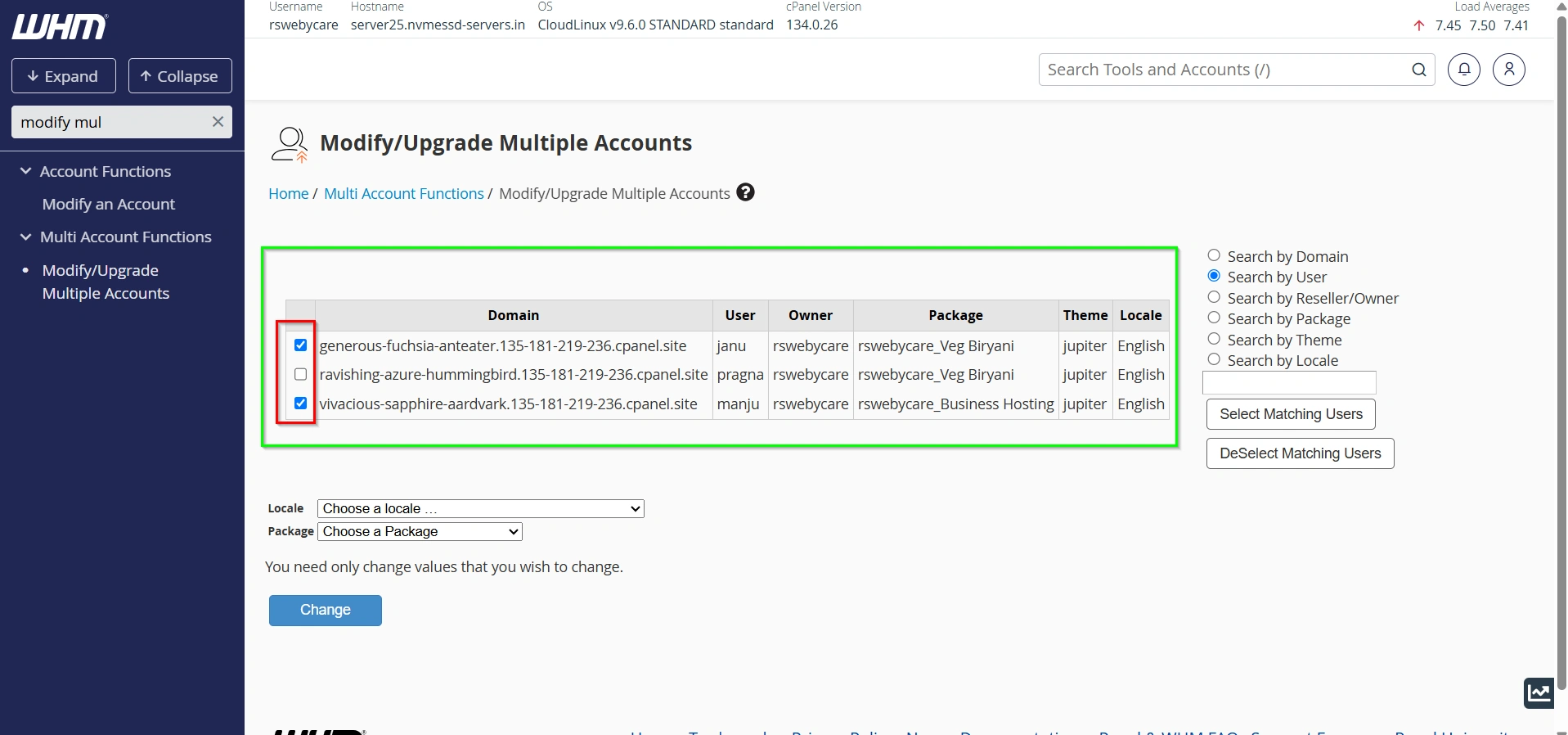
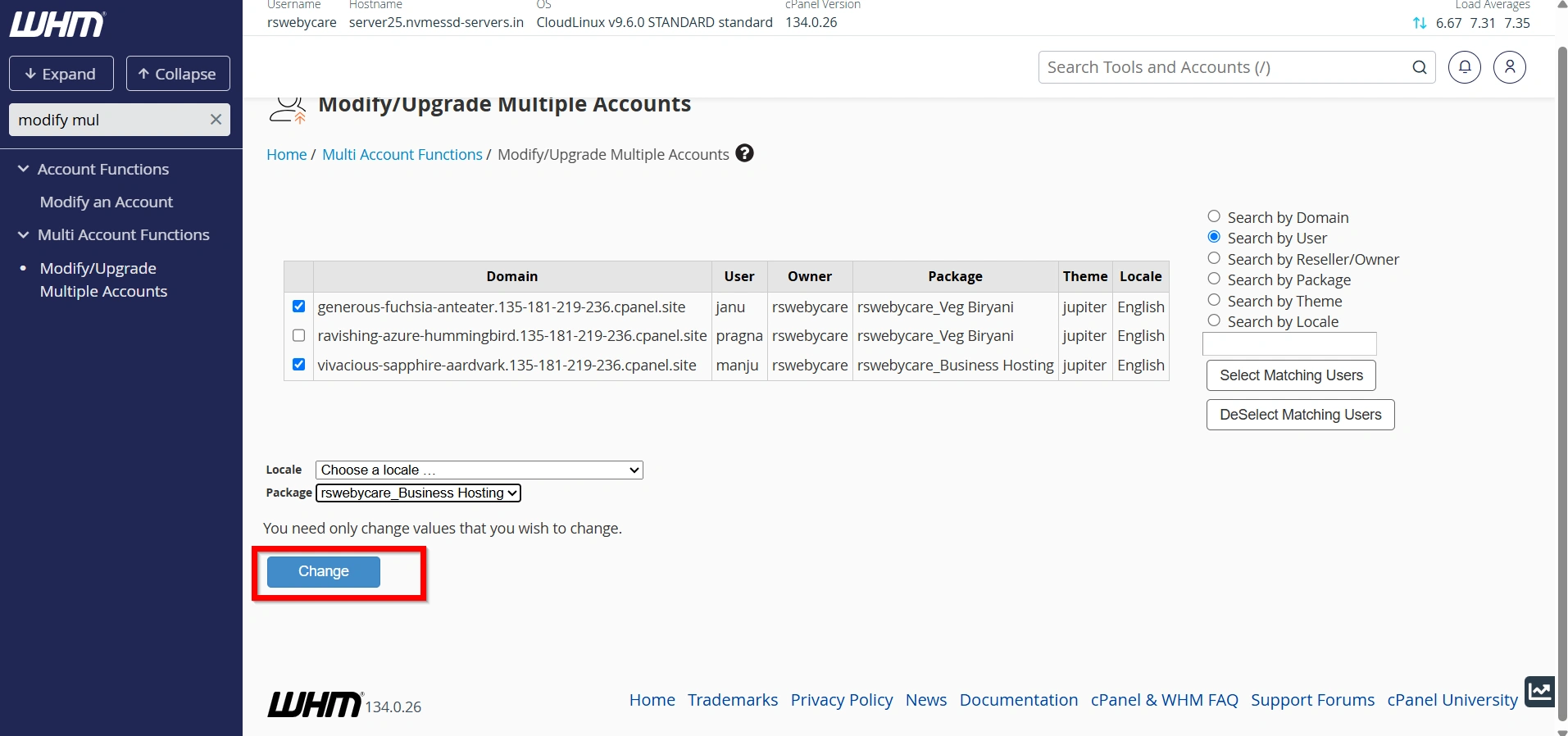
You will see a list of hosting accounts with checkboxes next to them.
- Select the accounts you want to modify
- You can choose one, several, or all accounts
This flexibility makes bulk operations highly efficient.
Step 4: Choose the New Package or Settings
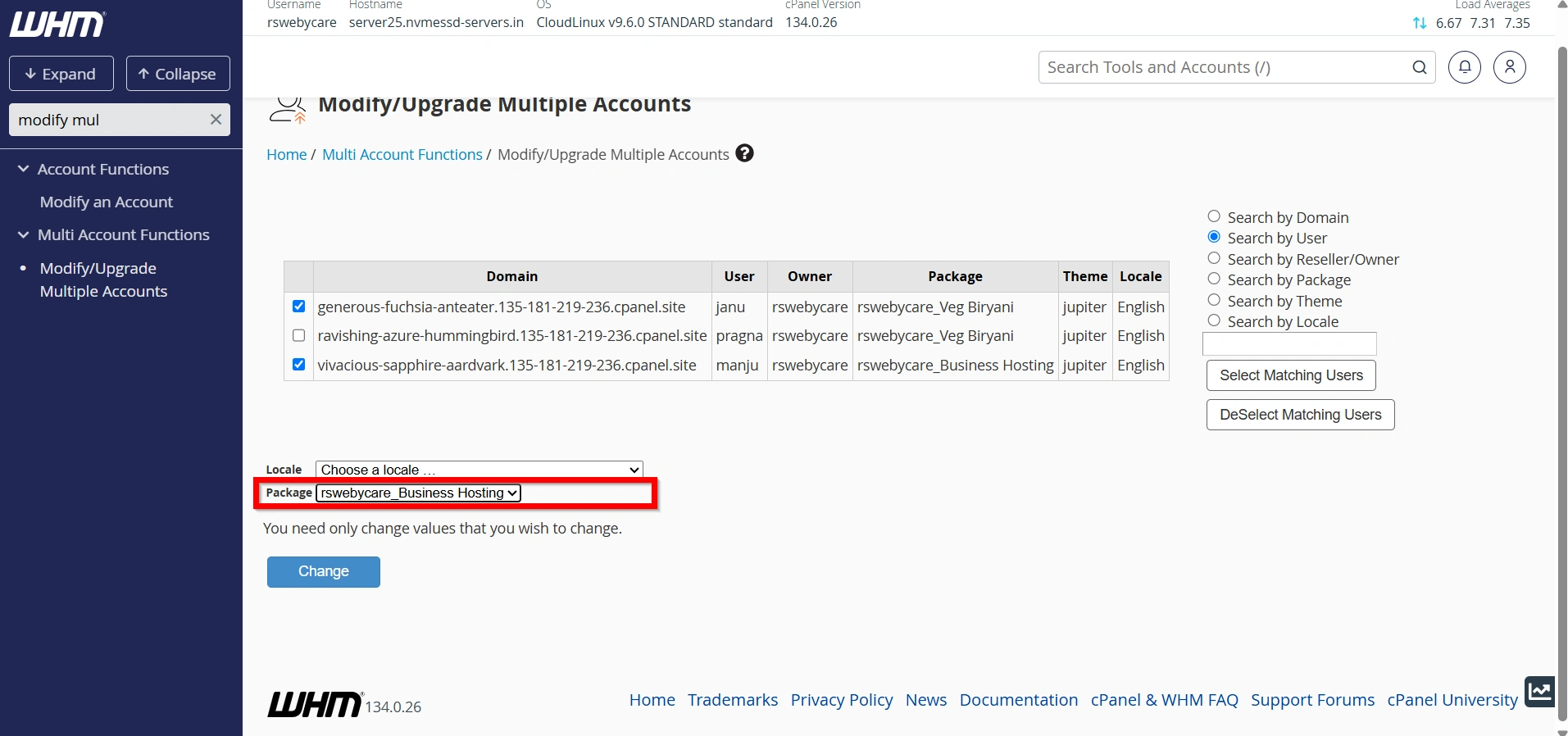
After selecting accounts, choose the new configuration:
- Assign a different hosting package
- Or manually adjust settings like disk quota and bandwidth
- Apply consistent resource limits across selected accounts
For example, you may upgrade all selected users from a “Starter Plan” to a “Business Plan”.
Step 5: Review Selected Changes
Before applying updates, WHM displays a summary of changes.
Carefully review:
- Selected accounts
- New package or settings
- Resource allocation changes
This step ensures accuracy and prevents accidental modifications.
Step 6: Apply the Changes
Click the Change button.
WHM will immediately apply updates to all selected accounts.
The process is fast and does not require server reboot.
What Happens After Bulk Modification?
Once changes are applied:
- All selected accounts are updated instantly
- cPanel reflects new resource limits
- Websites continue running without interruption
- No downtime occurs during the process
This ensures smooth hosting operations.
Why Bulk Account Modification is Important
Handling hosting accounts one by one is not practical in modern hosting environments. Bulk modification offers several advantages:
1. Saves Time and Effort
2. Improves Server Management Efficiency
3. Reduces Human Errors
4. Simplifies Hosting Plan Upgrades
5. Essential for Hosting Providers
Benefits of Using Bulk Account Modification in WHM
Using this feature provides several long-term advantages:
- Faster server administration
- Simplified hosting management
- Reduced workload for administrators
- Better resource optimization
- Improved customer service efficiency
- Scalable hosting operations
Conclusion
The ability to modify or upgrade multiple accounts in WHM (Web Host Manager) is an essential feature for any hosting provider or system administrator. It allows bulk updates to hosting accounts quickly, efficiently, and without downtime.
Whether you are upgrading hosting plans, balancing server resources, or managing large numbers of clients, this feature helps streamline operations and improve productivity.
By using WHM’s bulk account management tools correctly, you can ensure smooth server performance and deliver better hosting services to your customers.
For more WHM management tutorials and step-by-step guides,
visit our WHM knowledge base: www.webystrata.com/blog/category/whm-panel/
Originally published on WebyStrata.com Blog.
Related Articles