WordPress Complete Tutorials
WordPress – Edit Links
In this chapter, we will study how to edit link in WordPress. Following are the simple steps to Edit Links in WordPress Step (1) − Click on Pages → All Pages as shown in the following screen. Step (2) −…
In this chapter, we will study how to edit link in WordPress.
Following are the simple steps to Edit Links in WordPress
Step (1) − Click on Pages → All Pages as shown in the following screen.

Step (2) − You can view the list of pages. When the cursor hovers on the Sample page, then a few options get displayed below Sample page. Click on Edit as shown.

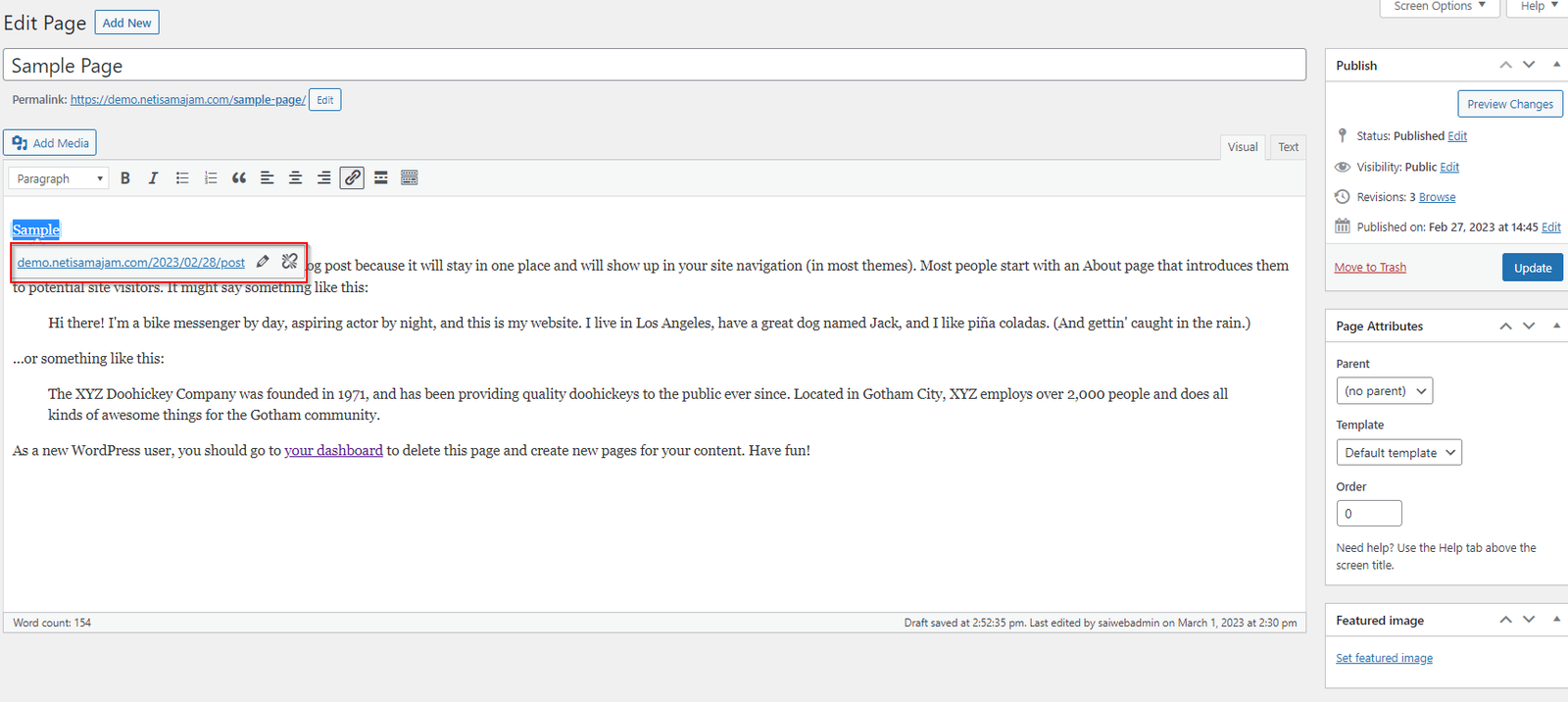
Step (3) − Hover on the word Sample (Link for word Sample was created in the chapter WordPress – Add Links, and click on the pencil symbol to edit the link as shown in the following screen.

Step (4) − You can change or edit your link by selecting the page from the existing list. In this case, we have selected the Sample page.

After selecting the particular page or post from the list, then click on Update button.
Step (5) − When you hover on the word Sample then the link tooltip get displayed as seen in the following screen.

Click on Update button to update the changes in your page or post.
Related Articles