WHMCS
How to Install WHMCS via cPanel Site Software
[caption id="attachment_10897" align="alignnone" width="2560"] [/caption] How to Install WHMCS via cPanel Site Software cPanel, L.L.C. deprecated the Site Software feature in cPanel & WHM version 104. We recommend performing a manual installation instead. You can install WHMCS easily…

How to Install WHMCS via cPanel Site Software
cPanel, L.L.C. deprecated the Site Software feature in cPanel & WHM version 104. We recommend performing a manual installation instead.
You can install WHMCS easily using cPanel’s Site Software feature.
To do this:
1. If you have not already done so, configure cPanel Site Software to offer WHMCS.
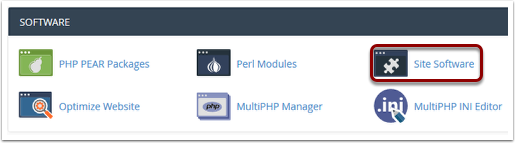
2. Log in to cPanel and go to Software >> Site Software.
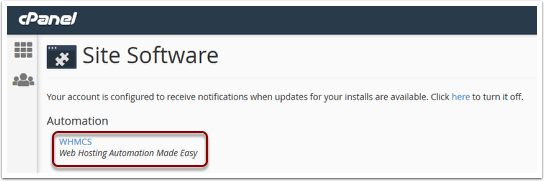
3. Click WHMCS.
4. Enter the domain on which you want to install WHMCS.
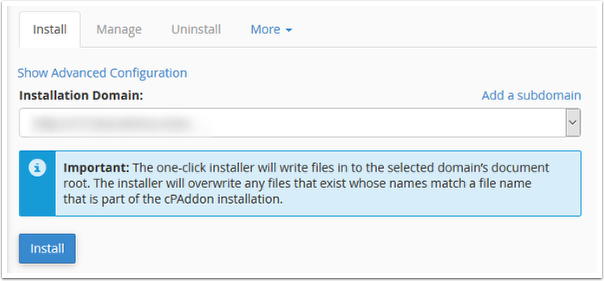
5. Optionally, click Show Advanced Configuration to choose specific configuration options, like a specific installation directory and admin account details.
6. Click Install. The installation may take up to 30 seconds.
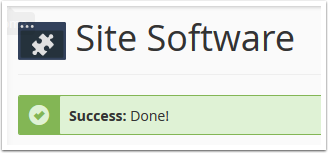
7. Visit the displayed URL and log in to WHMCS using your admin account’s credentials.
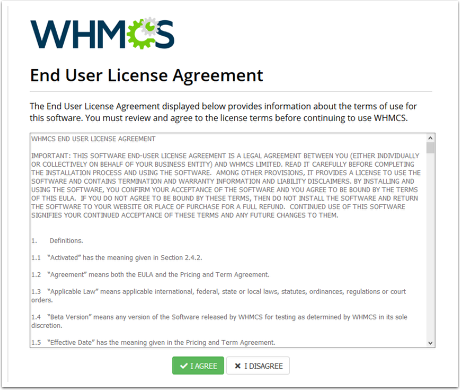
8. Review and agree to the End User License Agreement.
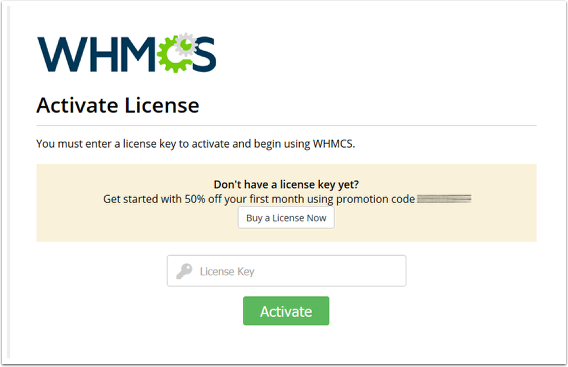
9. Enter your WHMCS license key and click Activate.
If you do not already have a license key, click Buy a License Now to purchase one.
The system will display the Admin Dashboard and allow you to begin using WHMCS.
Related Articles