cPanel
How to Add an Addon Domain in cPanel
An addon domain allows you to host multiple websites under a single cPanel hosting account. Each addon domain works as a separate website with its own files and content. For example: Main Domain: example.com…
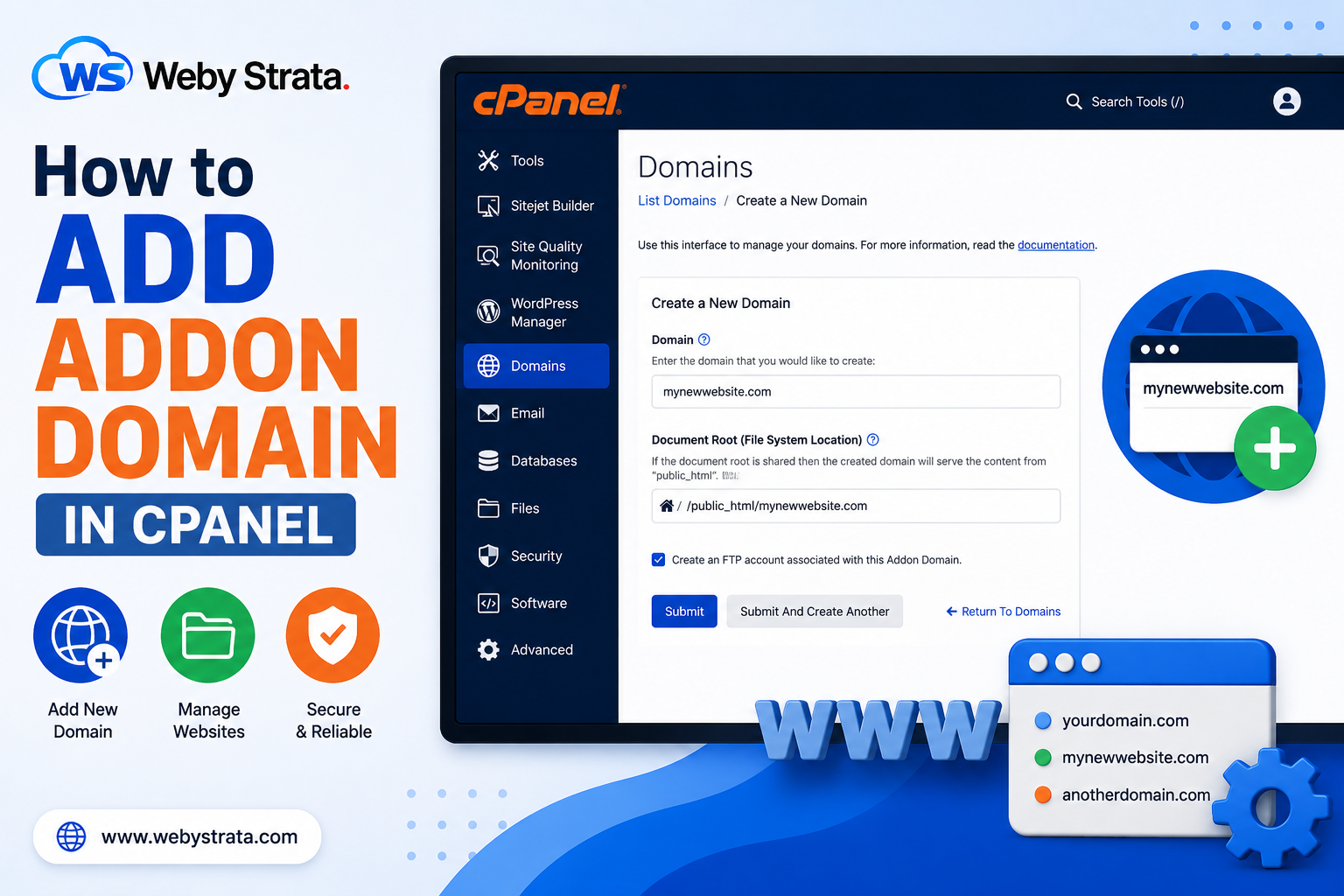
An addon domain allows you to host multiple websites under a single cPanel hosting account. Each addon domain works as a separate website with its own files and content.
For example:
- Main Domain: example.com
- Addon Domain: mywebsite.com
Both websites can be managed from the same cPanel account.
we will show you how to add an addon domain in cPanel step by step.
Step 1: Login to cPanel
Login to your cPanel account using your username and password.
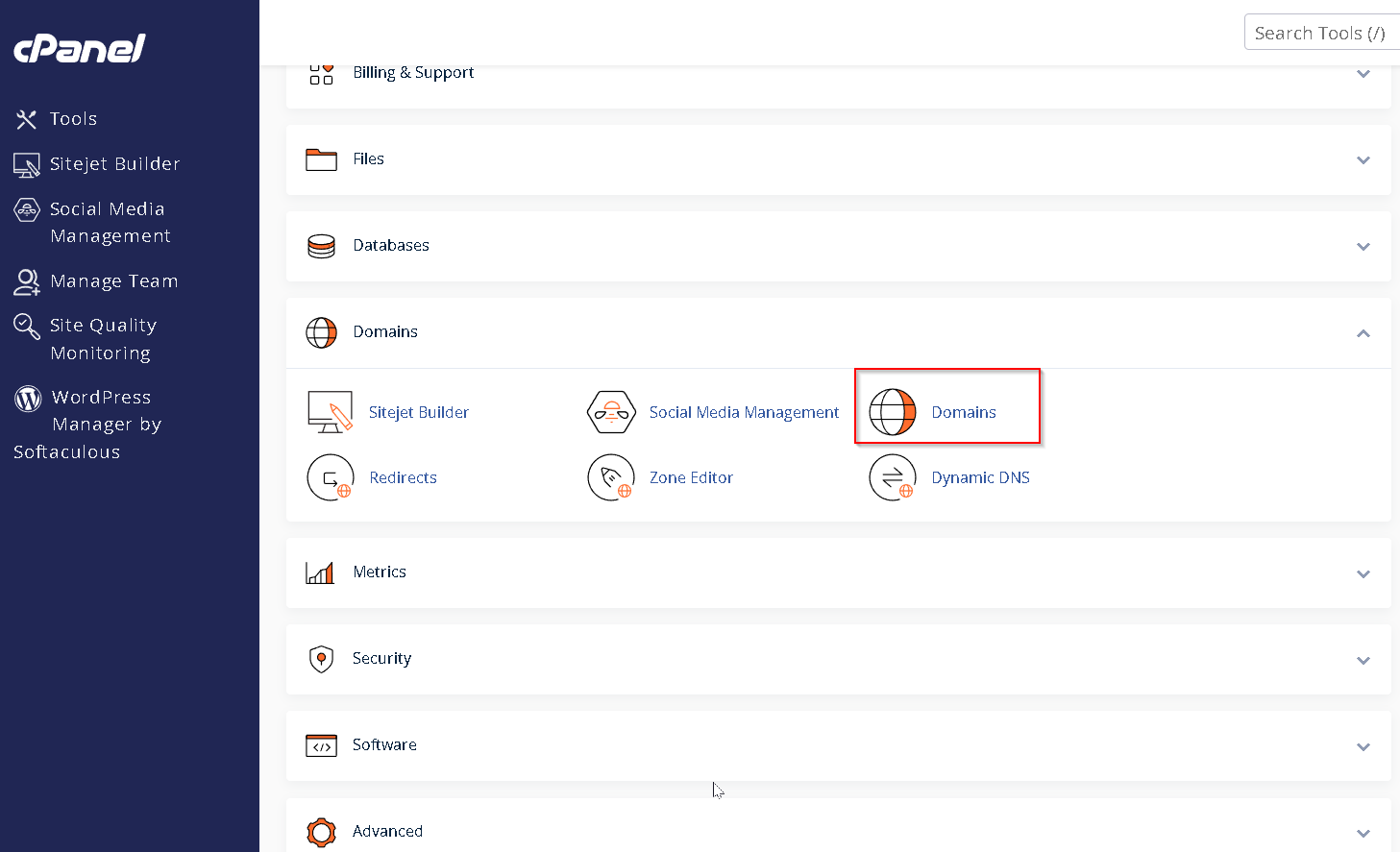
Step 2: Open the Domains Section
After logging into cPanel:
- Search for Domains
- Click on Domains
Some cPanel versions may also show an Addon Domains option.
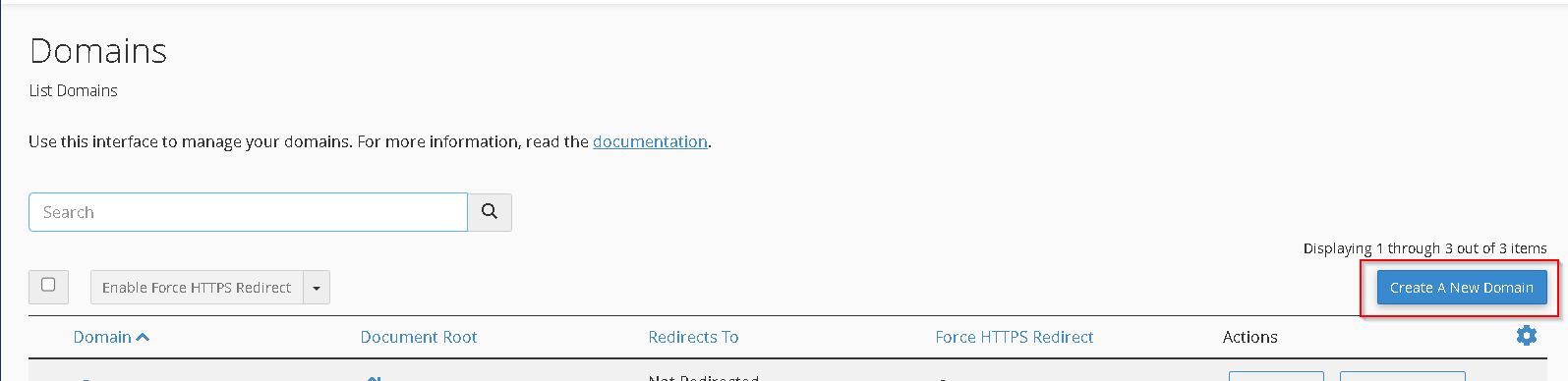
Step 3: Click on “Create A New Domain”
Inside the Domains section, click on: Create A New Domain
Step 4: Enter the Addon Domain Name
Enter the domain name you want to add.
Example:
- mywebsite.com
- Untick Share document root if you want a separate website folder
Specify the directory where you want all the files of your domain to exist.
After entering the domain details, click on: Submit
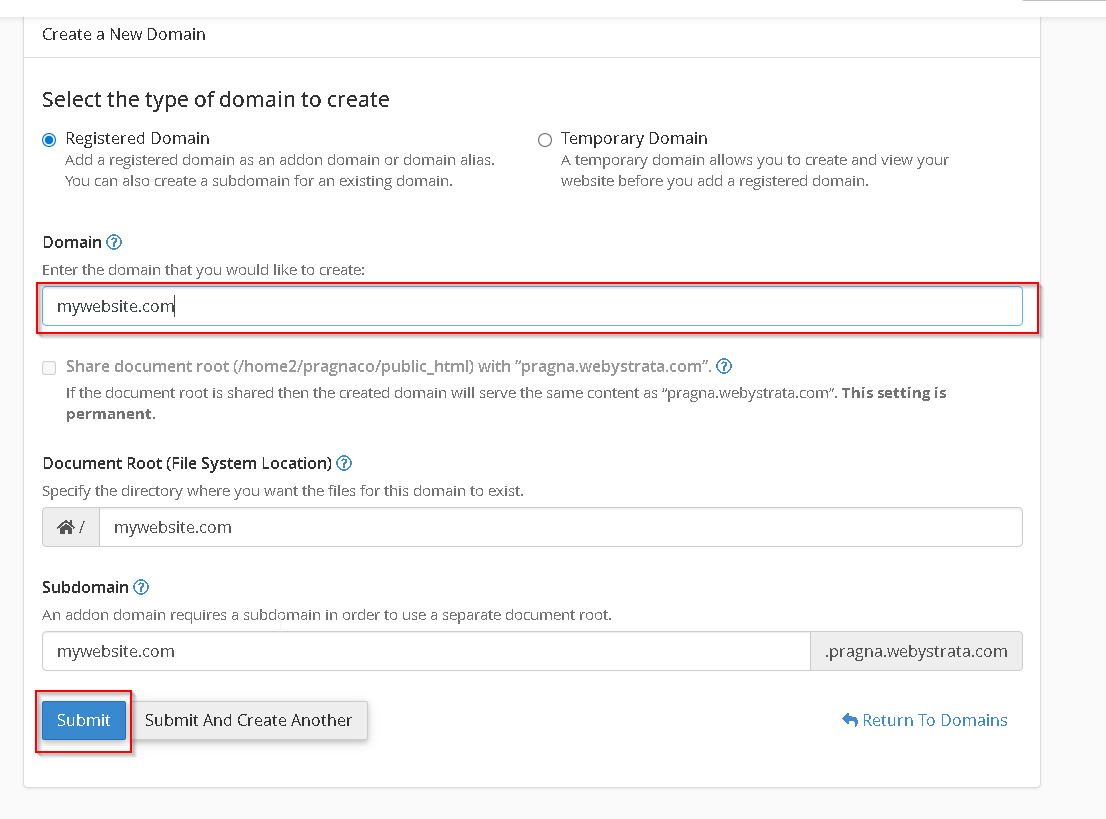
The addon domain will now be added successfully to your hosting account.
This is how you can add an addon domain in cPanel.
Originally published on WebyStrata.com Blog.
Related Articles