Latest Updates
How to Embed a Video into WordPress Posts or Pages
How to Embed a Video into WordPress Posts or Pages Videos have become an essential part of modern websites. Whether you're sharing tutorials, product demonstrations, customer testimonials, webinars, or educational content, videos help make…
How to Embed a Video into WordPress Posts or Pages
Videos have become an essential part of modern websites. Whether you’re sharing tutorials, product demonstrations, customer testimonials, webinars, or educational content, videos help make your website more engaging and informative. Fortunately, WordPress makes it easy to embed videos into posts and pages without requiring any coding knowledge.
Instead of uploading large video files directly to your website, you can simply paste a video URL from a supported platform, and WordPress will automatically display the video for your visitors. This approach improves website performance while providing a better user experience.
In this guide, you’ll learn how to embed videos into WordPress posts and pages, understand how video embedding works, and discover the benefits of using video content on your website.
How Video Embedding Works in WordPress
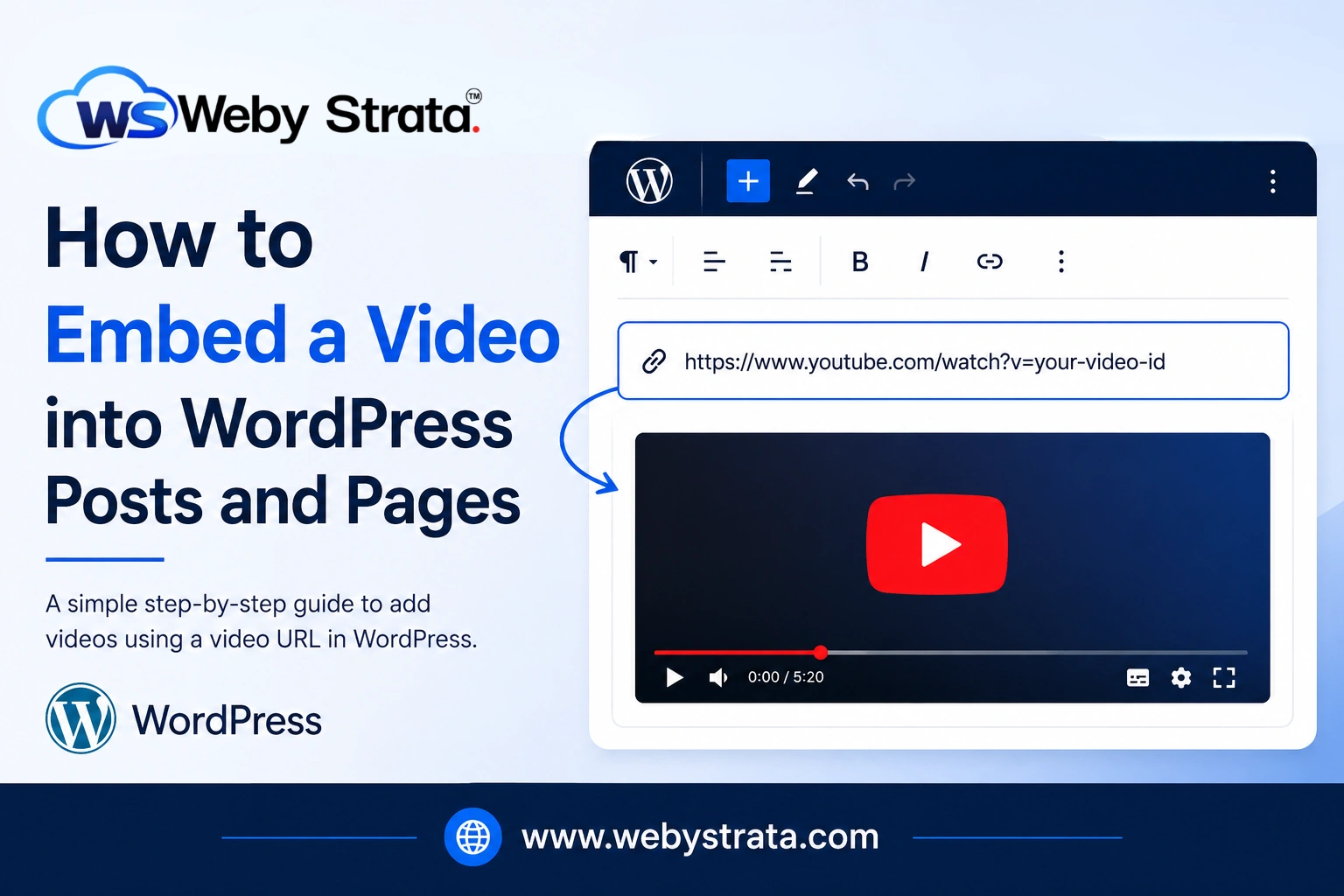
WordPress includes a built-in feature called Auto-Embed. When you paste a supported video URL into the content editor, WordPress communicates with the video provider and displays the video within your post or page.
This means you do not need to manually write HTML code or upload large video files. The video remains hosted on the original platform while being displayed seamlessly on your website.
Why Embed Videos Instead of Uploading Them?
Although WordPress allows you to upload video files directly to your Media Library, embedding videos is usually the better option.
When you upload videos directly:
- Videos consume hosting storage space.
- Large files can slow down your website.
- Video streaming increases server resource usage.
- Backups become larger and more difficult to manage.
When you embed videos:
- Storage requirements are reduced.
- Streaming is handled by the video provider.
- Website performance remains optimized.
- Visitors enjoy smooth video playback.
How to Embed a Video into WordPress Posts or Pages
Step 1: Log in to WordPress
Access your WordPress Admin Dashboard using your administrator account.
Enter your administrator username and password, then click Log In.
Once logged in, you will be redirected to the WordPress Dashboard.
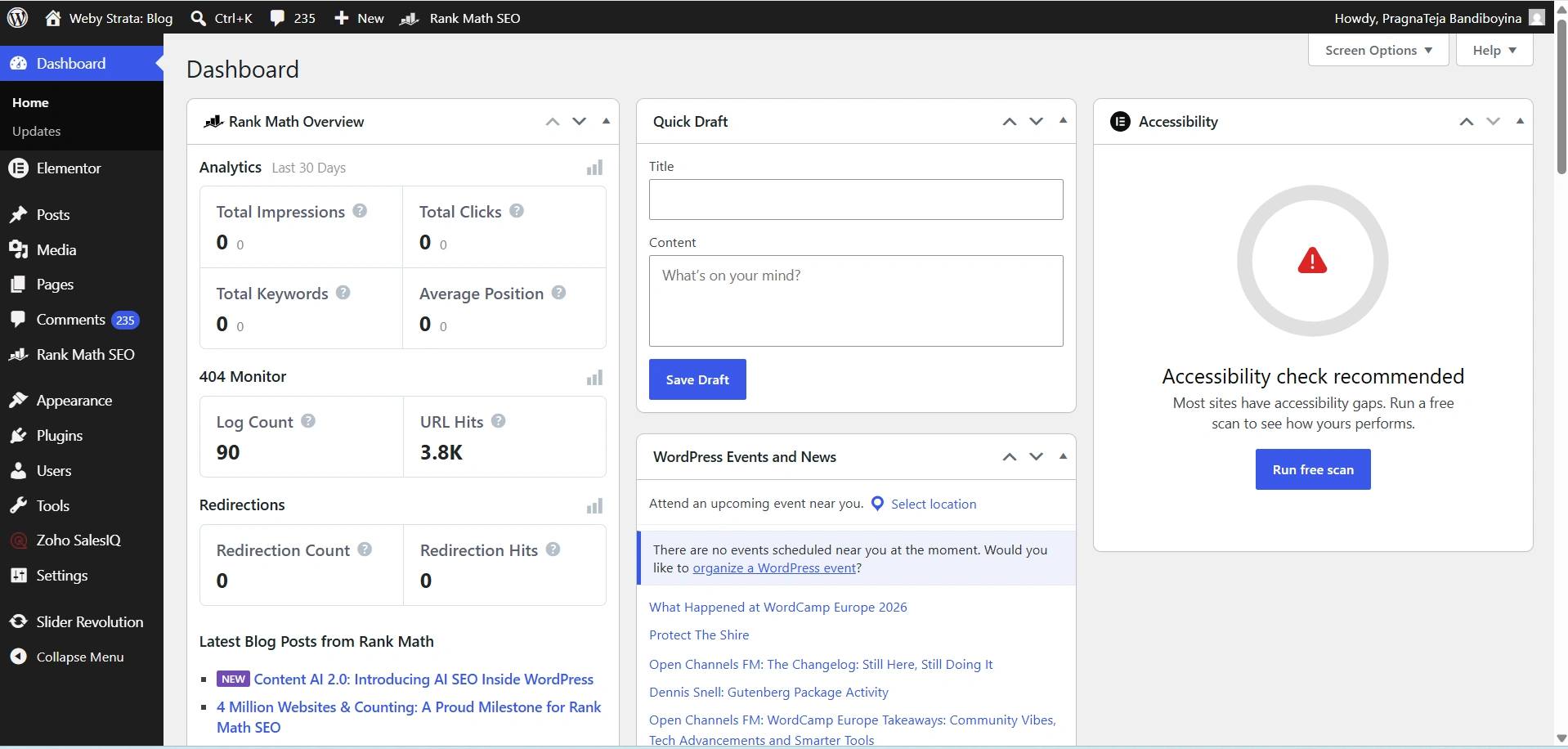
Step 2: Open the Post or Page
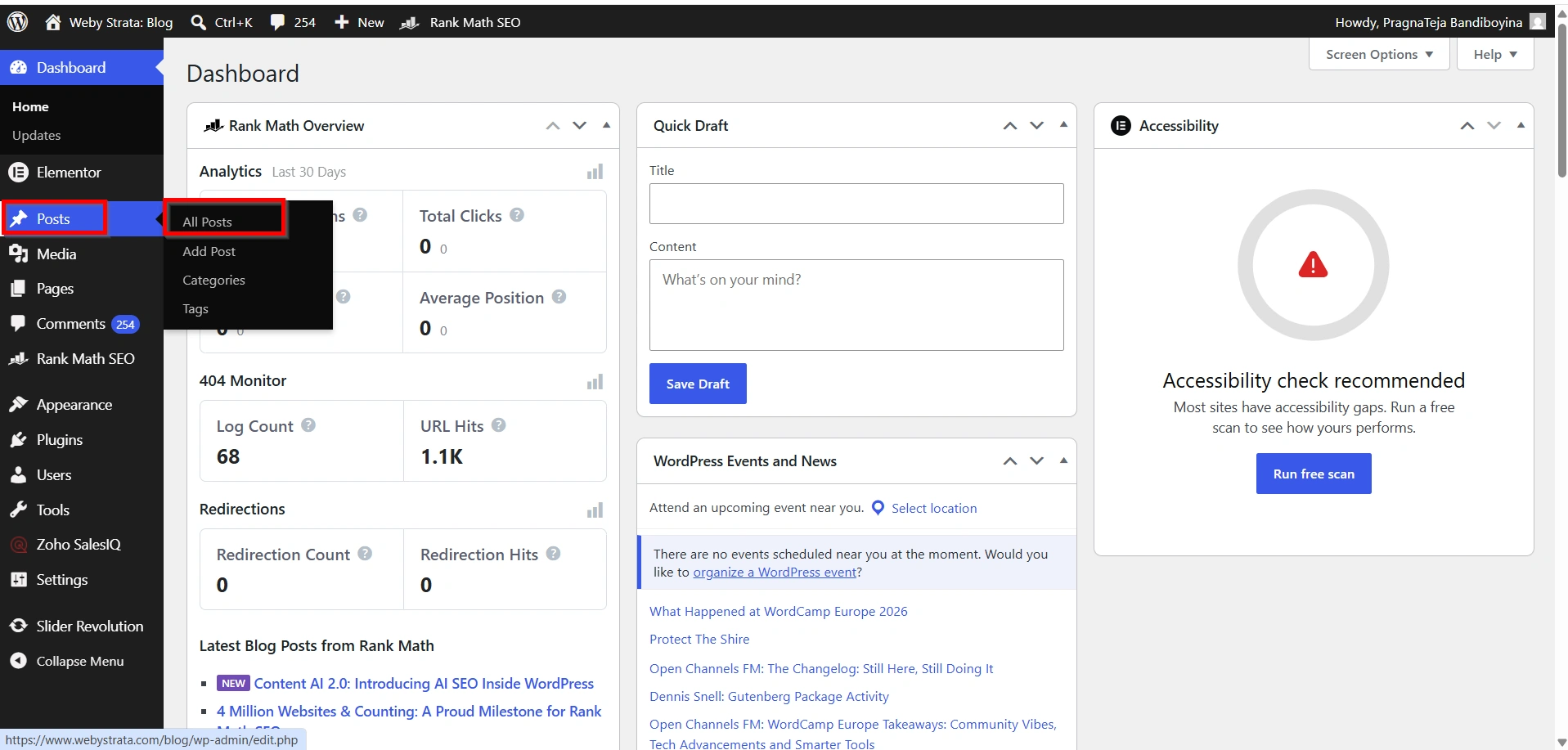
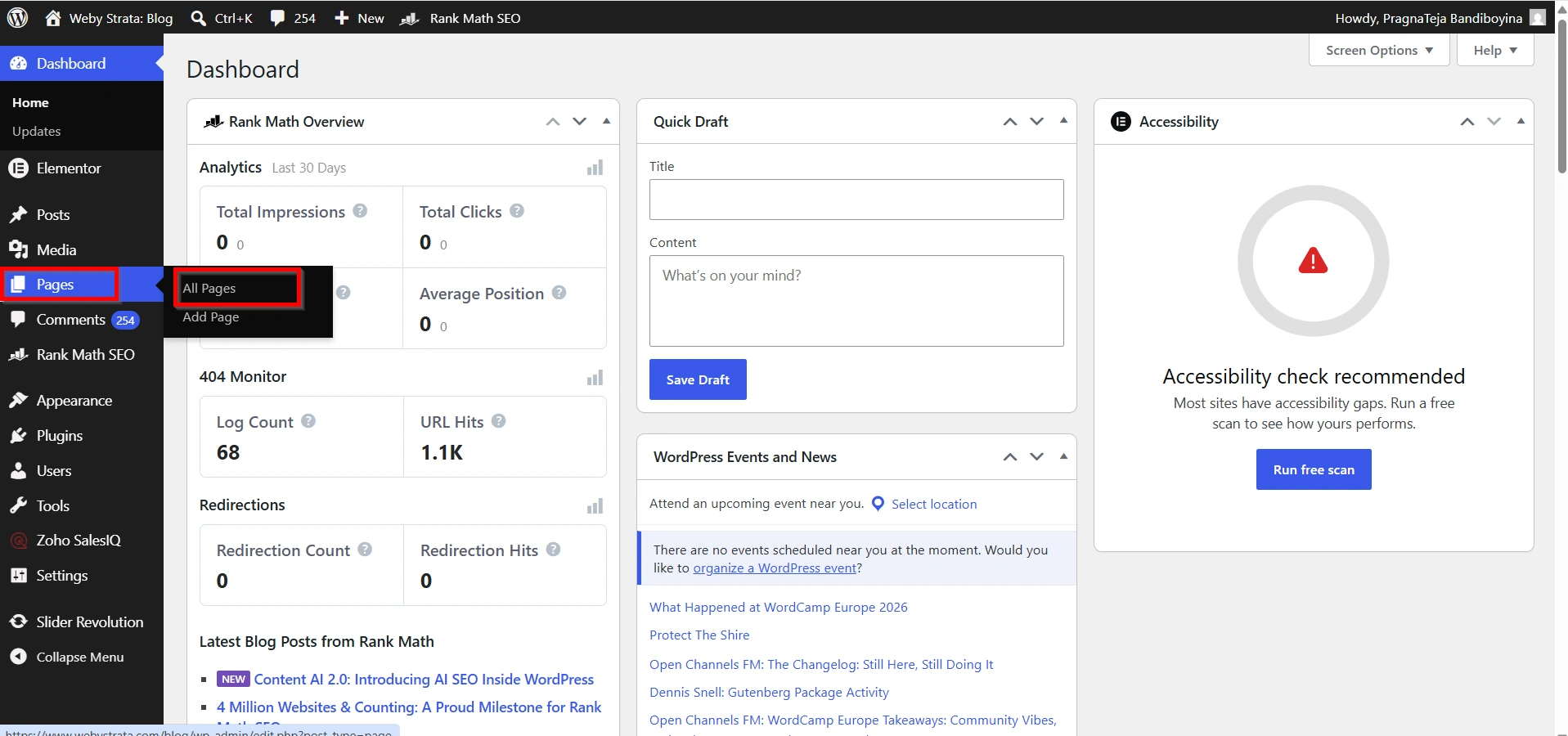
Navigate to:
- Posts → All Posts
- Pages → All Pages
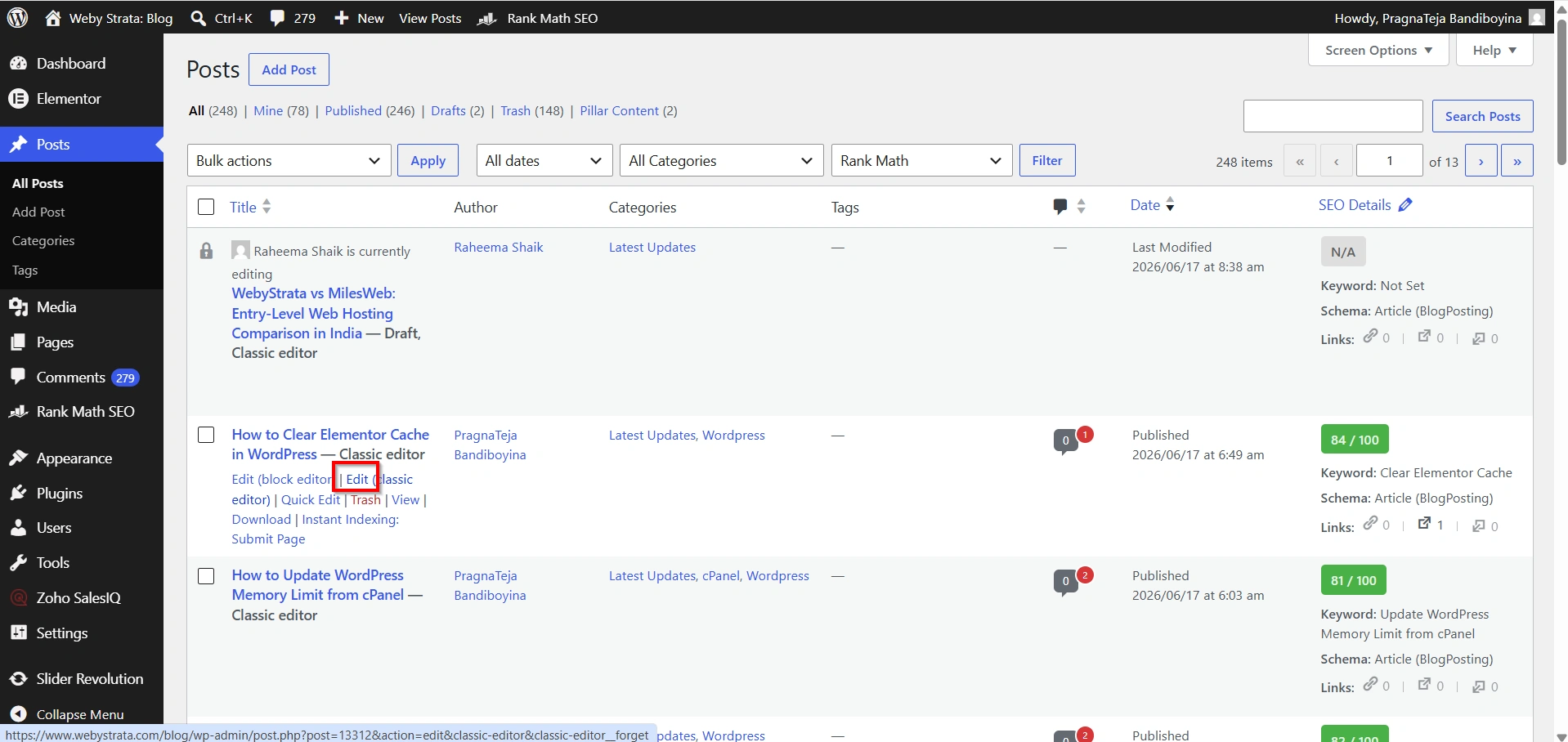
- Select the post or page where you want to add the video then Click Edit
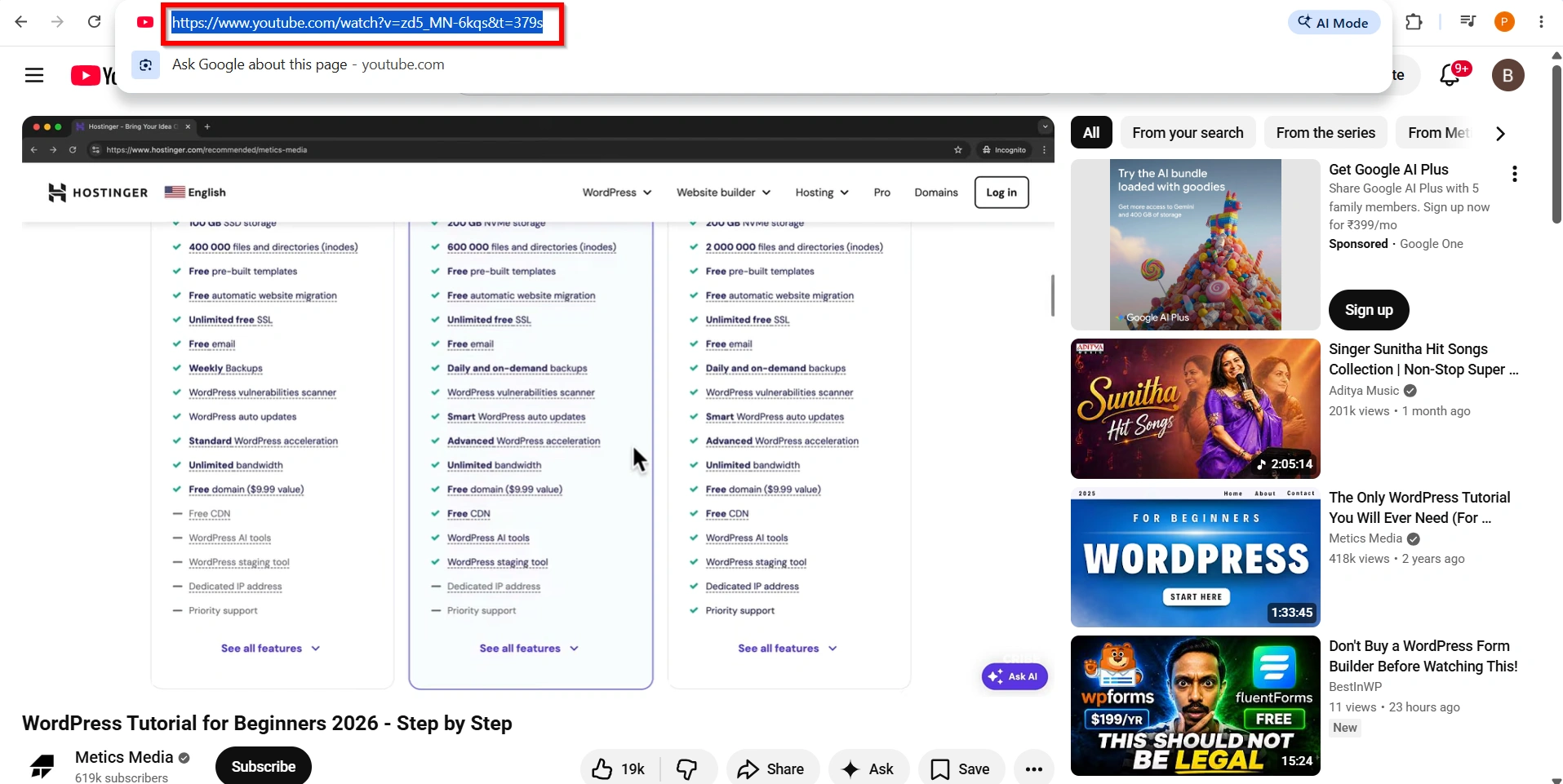
Step 3: Copy the Video URL
Visit the video platform and copy the video’s URL.
Example:
https://www.youtube.com/watch?v=your-video-id
Step 4: Place the Cursor in the Editor
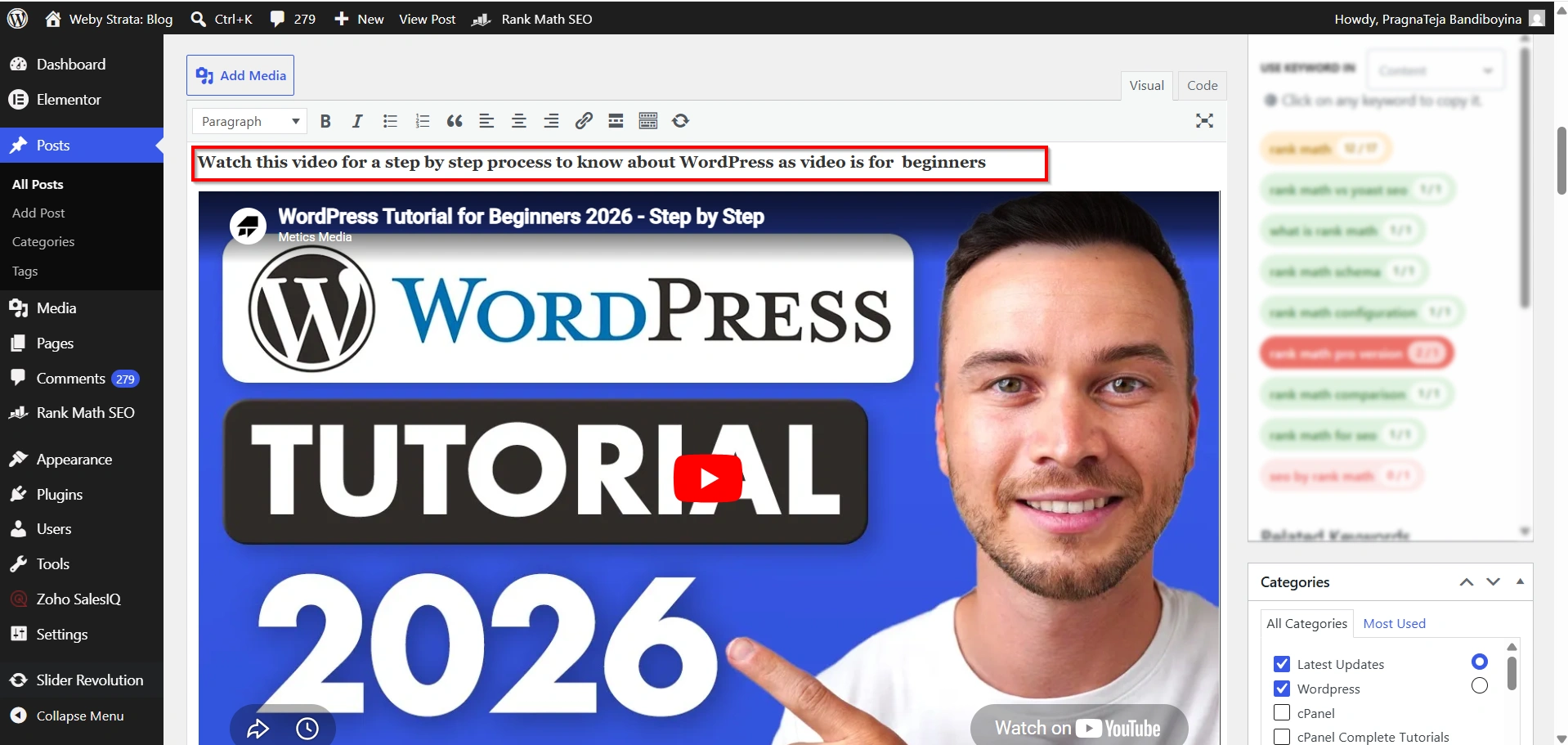
In the WordPress editor, click where you would like the video to appear.
Step 5: Paste the Video URL
Paste the video URL on its own line within the content area.
WordPress will automatically detect the URL and convert it into an embedded video when the page is displayed.
Step 6: Publish or Update the Page
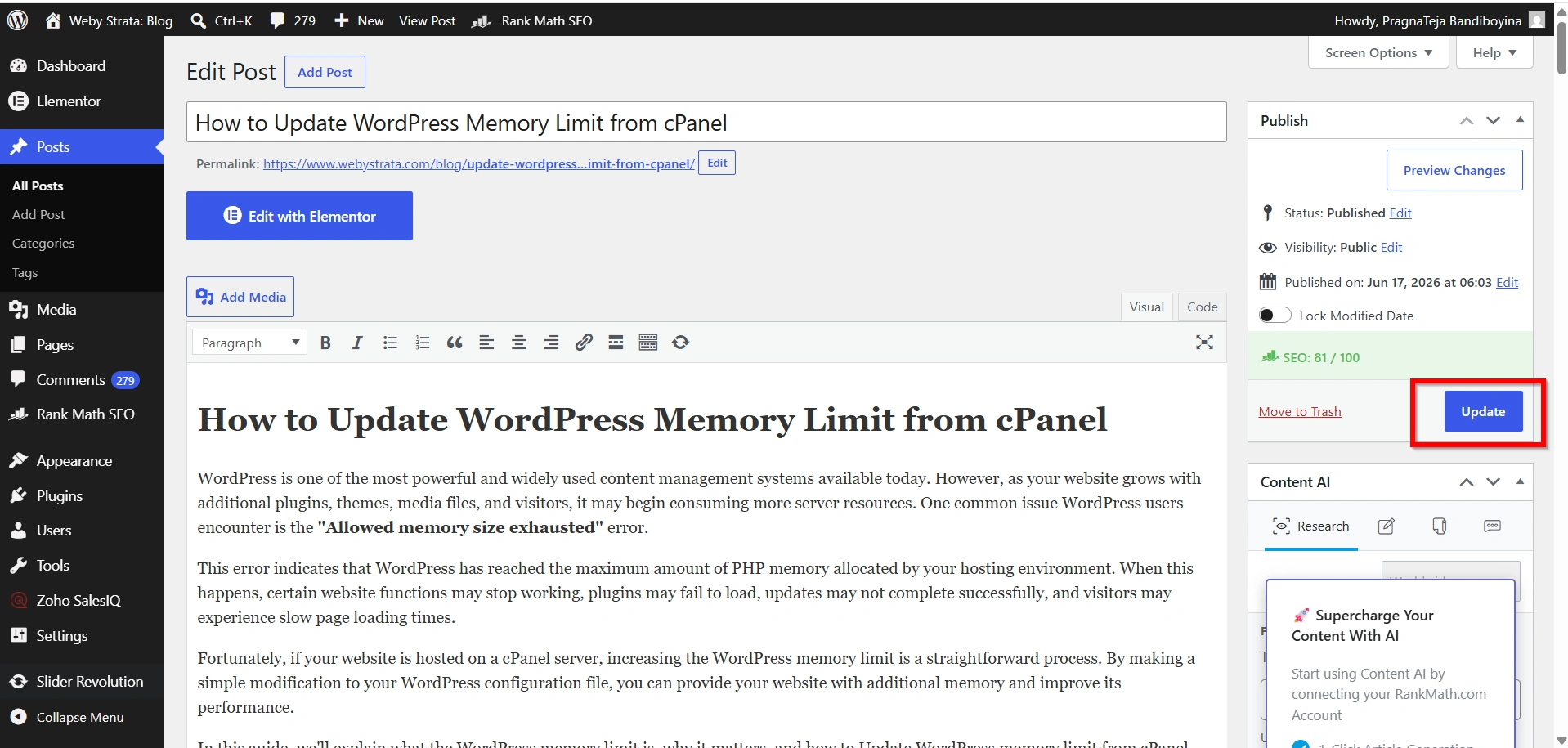
Click Update or Publish to save your changes.
Your visitors will now be able to watch the video directly from your website.
Benefits of Embedding Videos in WordPress
- Improved User Engagement
- Increased Time on Site
- Better Content Understanding
- Reduced Hosting Costs
- Faster Website Performance
- Mobile-Friendly Experience
- Professional Appearance
- Enhanced Marketing Opportunities
Best Practices for Embedding Videos
To get the best results from your embedded videos:
- Use high-quality video content.
- Place videos near relevant text content.
- Avoid embedding too many videos on a single page.
- Test videos on mobile devices.
- Add descriptive titles and captions.
- Ensure videos provide value to your audience.
Conclusion
Embedding a video into WordPress posts and pages is one of the easiest ways to enhance your website content and improve visitor engagement. By simply pasting a video URL into the WordPress editor, you can display videos without uploading large files or using custom code. This approach helps save storage space, improves website performance, and creates a more interactive experience for your audience. Whether you’re publishing tutorials, product demonstrations, testimonials, or educational content, video embedding is an effective way to make your website more informative and engaging.
Originally published on WebyStrata.com Blog.
Related Articles