Latest Updates
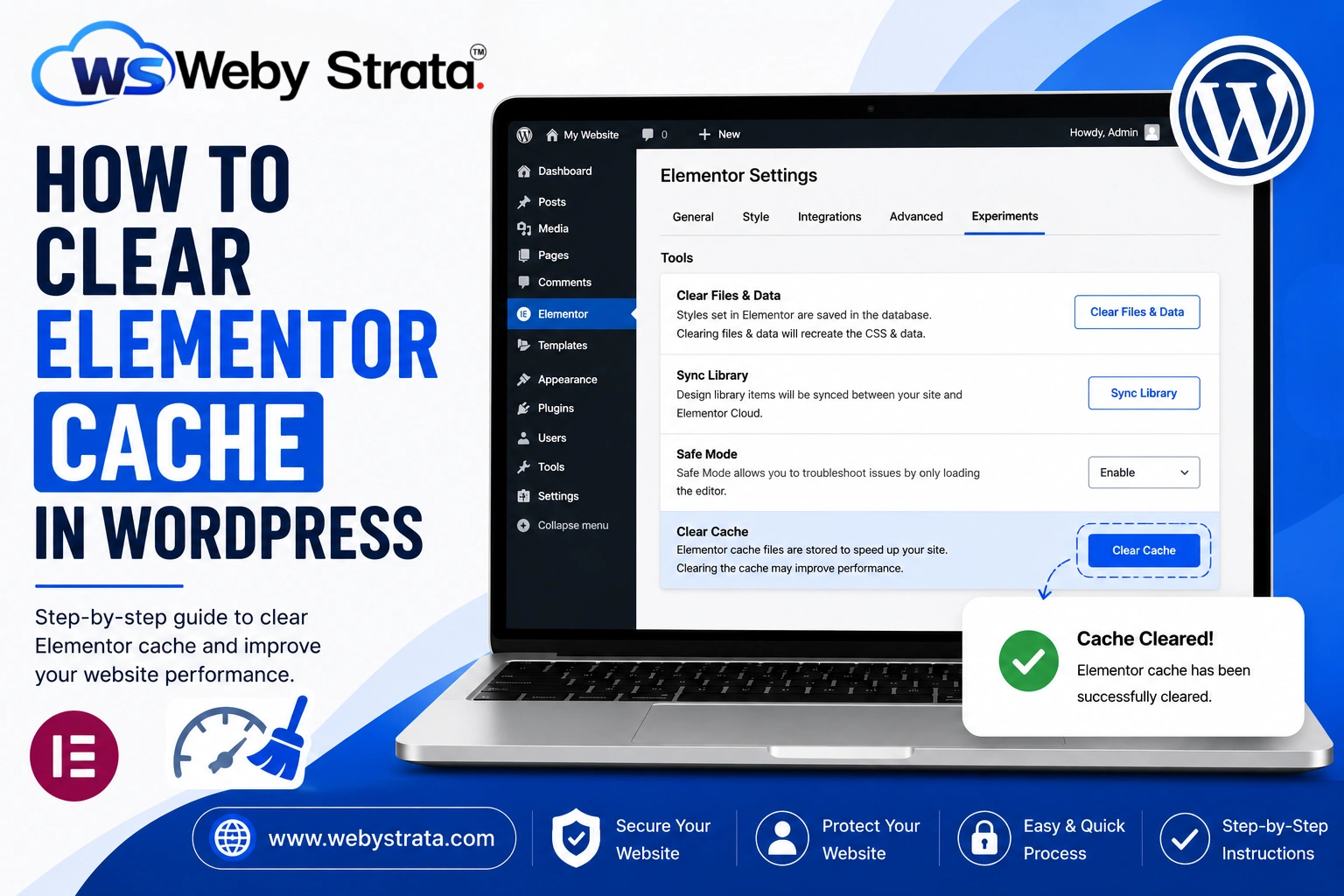
How to Clear Elementor Cache in WordPress
How to Clear Elementor Cache in WordPress Elementor is one of the most powerful and widely used page builders for WordPress. It allows users to create stunning websites using a simple drag-and-drop interface without…
How to Clear Elementor Cache in WordPress
Elementor is one of the most powerful and widely used page builders for WordPress. It allows users to create stunning websites using a simple drag-and-drop interface without requiring coding knowledge. While Elementor significantly simplifies website design, users may occasionally encounter issues such as design changes not appearing on the live website, outdated content being displayed, broken layouts, or styling inconsistencies.
In many cases, these issues are caused by cached files. Clearing Elementor cache is often the quickest and most effective solution to ensure your website displays the latest updates correctly.
In this guide, you’ll learn what Elementor cache is, why it matters, and how to clear Elementor cache step by step.
What is Elementor Cache?
Elementor cache is a performance optimization feature that stores static versions of your website’s files, such as CSS, JavaScript, and other generated resources. Instead of recreating these files every time a visitor loads a page, Elementor serves the cached versions, which helps improve website speed and reduce server load.
When visitors access your website, their browser sends requests to the web server. The server processes those requests and generates the page content. Without caching, this process would occur every time a page is loaded, increasing server resource usage and slowing down page load times.
By storing pre-generated files, Elementor can deliver content more quickly. However, when you make changes to your website, the cached files may still contain older versions of your pages. This can prevent visitors—and even you—from seeing the latest updates.
Signs That Elementor Cache Needs to Be Cleared
You may need to clear Elementor cache if you notice any of the following:
- Design changes not showing on the frontend
- Old content appearing after updates
- Missing fonts or icons
- Incorrect page styling
- Broken responsive layouts
- Delayed updates on mobile devices
- Visual inconsistencies between editor and live website
If you experience any of these issues, clearing the cache should be one of your first troubleshooting steps.
How to Clear Elementor Cache
Follow the steps below to clear Elementor cache and regenerate website files.
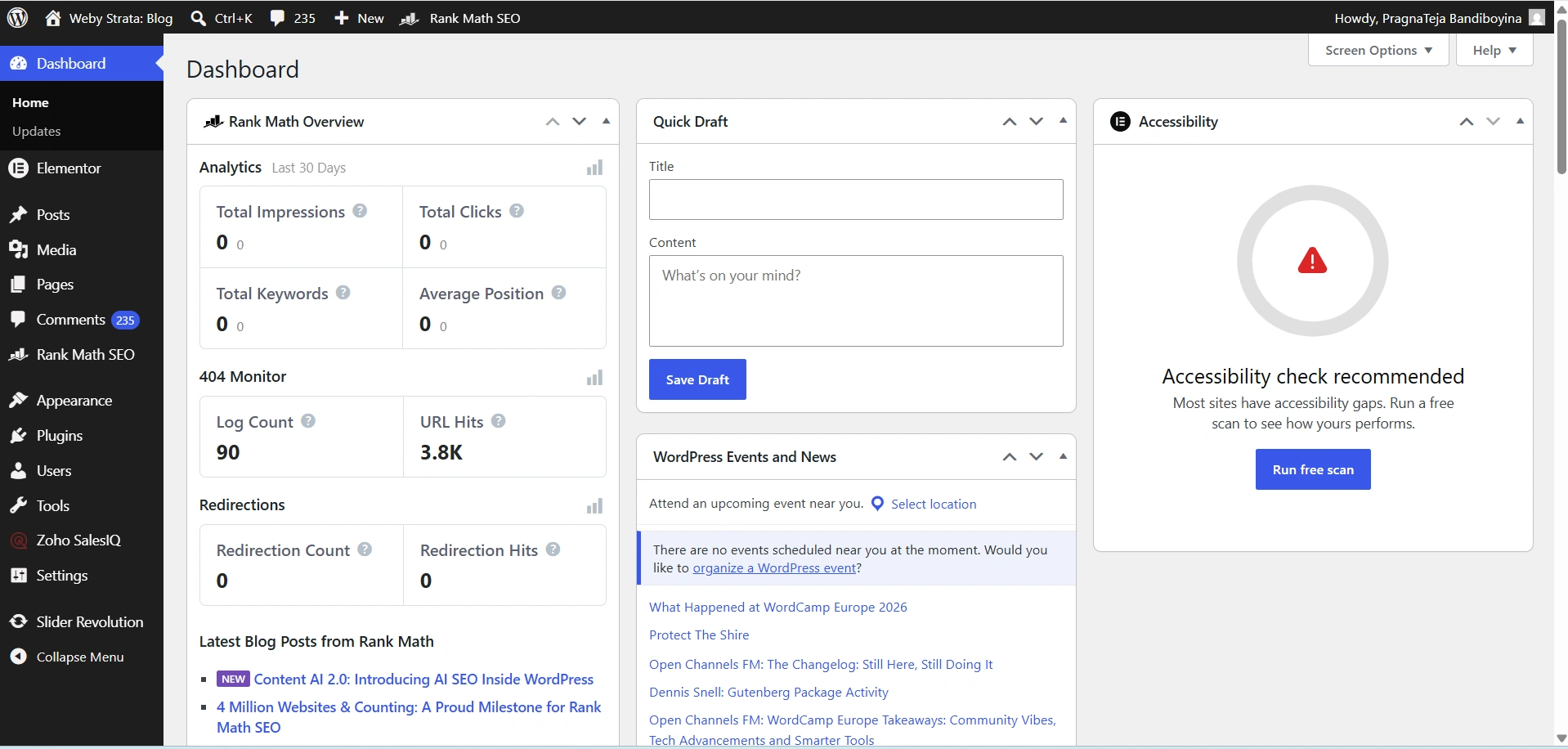
Step 1: Log in to Your WordPress Dashboard
Begin by accessing your WordPress administration area.
Open your web browser and visit:
https://yourdomain.com/wp-admin
Enter your administrator username and password, then click Log In.
Once logged in, you will be redirected to the WordPress Dashboard.
Step 2: Open Elementor Tools
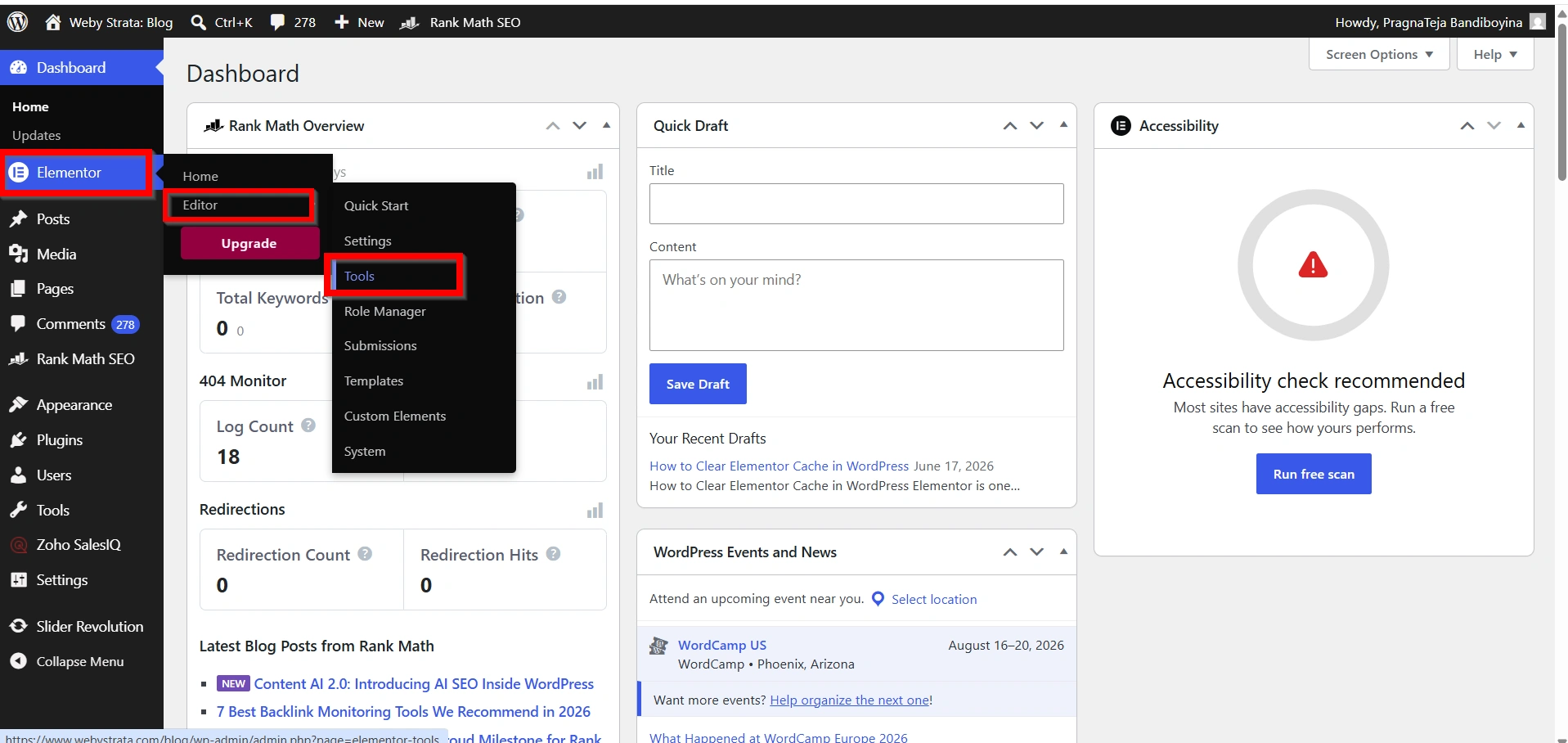
From the left-hand menu, navigate to:
Elementor → Editor → Tools
This section contains maintenance and troubleshooting tools for Elementor.
Step 3: Clear Files & Data
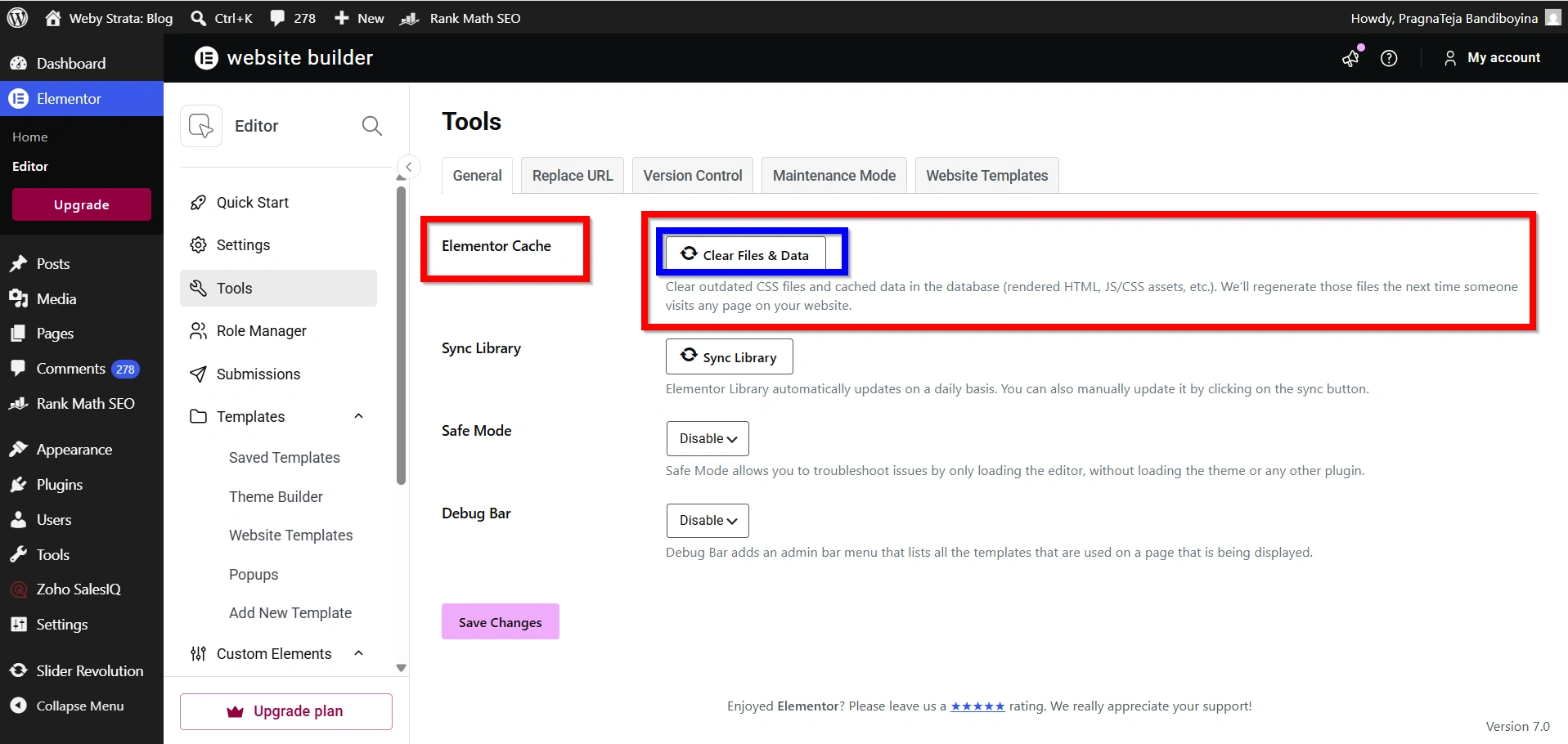
Inside the Elementor Tools page, you’ll see several tabs. Under the General tab, locate the option labeled:
Clear Files & Data
Click the button:
Clear Files & Data
Elementor will begin deleting outdated CSS files and rebuilding fresh versions based on your current website design.
This process may take a few seconds depending on the size of your website.
Step 4: Save Changes
Once the regeneration process completes successfully, a confirmation message or green check mark will appear.
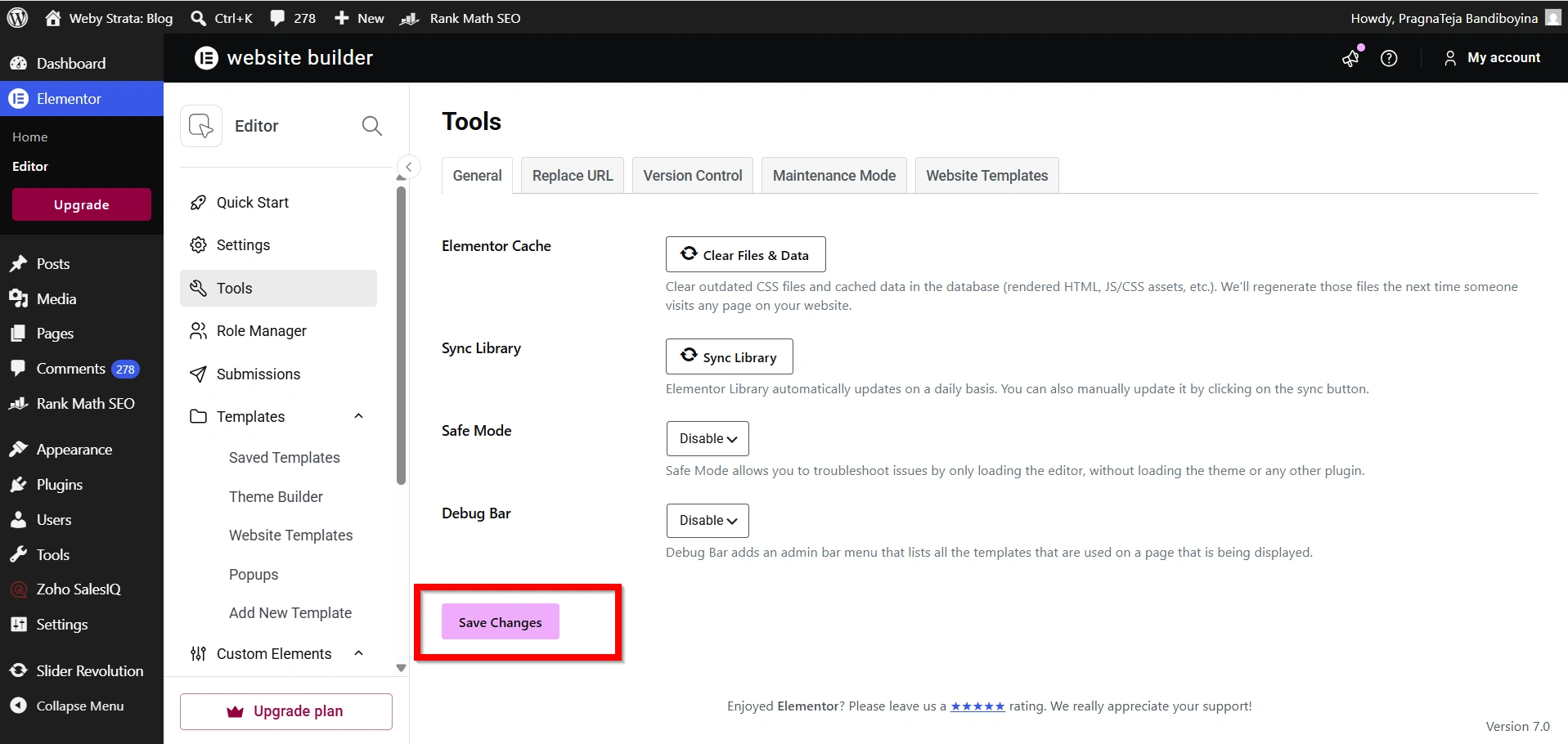
Click:
Save Changes
This ensures the newly generated files are applied correctly.
Step 5: Refresh Your Website
Visit your website in a new browser tab and refresh the page.
Most display issues should now be resolved, and your latest Elementor changes should be visible.
Why Should You Clear Elementor Cache?
Although caching improves performance, it can sometimes create issues when website content changes. Clearing Elementor cache helps eliminate outdated files and ensures that the newest version of your website is displayed.
Some common reasons to clear Elementor cache include:
1. Website Changes Are Not Visible
2. CSS Styling Issues
3. Elementor Update Problems
4. Layout or Design Errors
5. Performance Troubleshooting
Benefits of Clearing Elementor Cache
Regularly clearing Elementor cache provides several advantages:
- Faster Troubleshooting
- Improved User Experience
- Better Website Performance
- Accurate Design Preview
- Reduced Styling Conflicts
- Improved Mobile Responsiveness
- Compatibility After Updates
Conclusion
Elementor caching is an excellent feature that improves website performance and reduces server load. However, cached files can sometimes prevent recent updates from appearing on the live website. When this happens, clearing Elementor cache is usually the quickest and most effective solution.
By navigating to Elementor → Tools → Regenerate Files & Data, you can regenerate Elementor’s CSS and cached resources, ensuring visitors see the latest version of your website. For the best results, also clear your browser cache, caching plugin cache, and CDN cache if applicable.
Regular cache maintenance helps improve website performance, resolve display issues, and provide a better experience for your visitors.
Originally published on WebyStrata.com Blog.
Related Articles